Account Security & 2FA
Two-factor authentication (2FA) protects your sign-in. As well as your password, Kyglu CRM asks for a one-time code from an authenticator app on your phone.
Who can see it: Everyone. Each person sets up 2FA for their own account. Only the Owner can require it for the whole team.
Open it from your profile menu (your initials, top right) → Security.
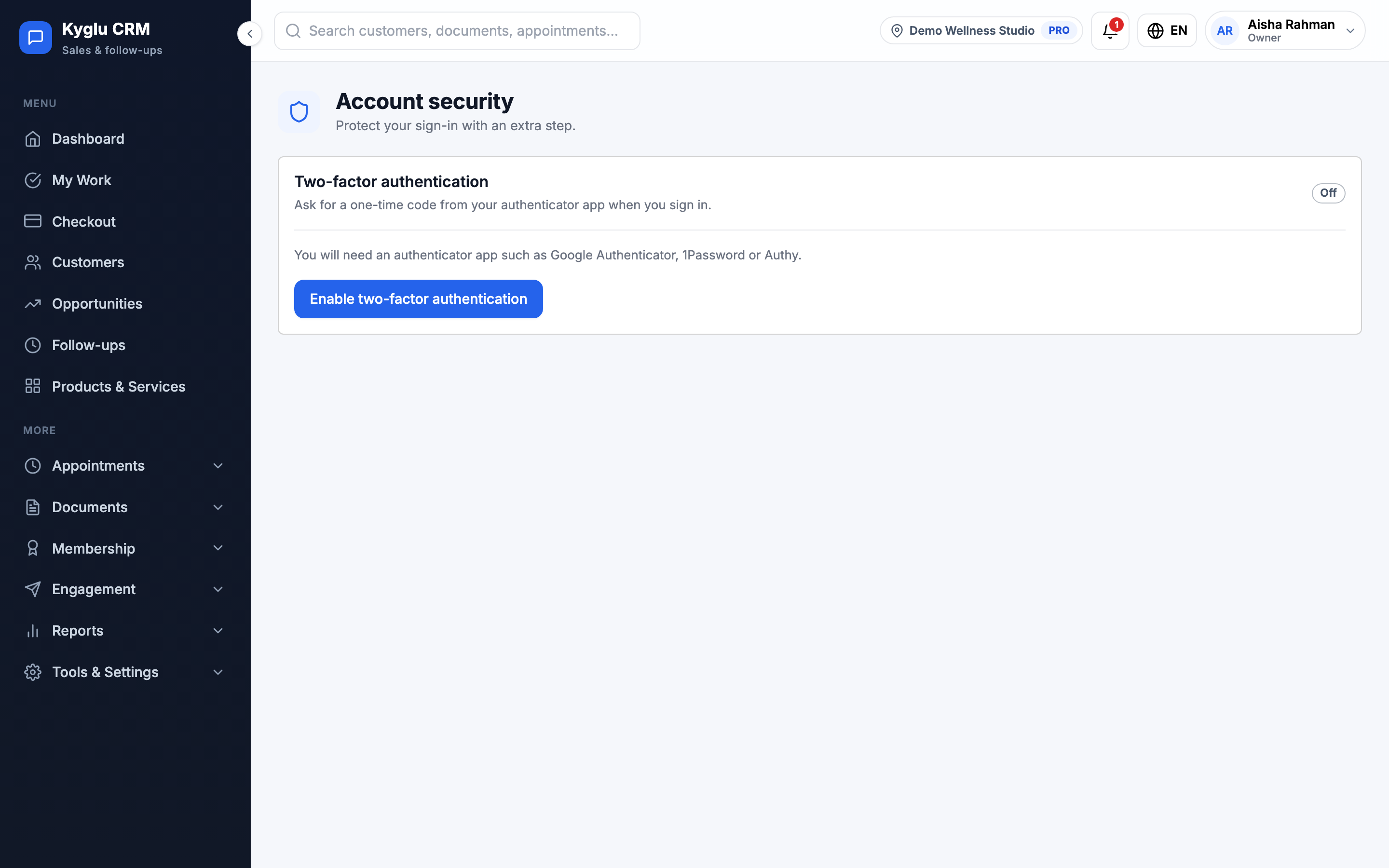
Turn on 2FA
You need an authenticator app, such as Google Authenticator, 1Password or Authy.
- Click Enable two-factor authentication.
- Scan the QR code with your authenticator app. If you can't scan it, enter the setup key shown instead.
- Enter the 6-digit code the app shows, and click Confirm and turn on.
- Save your Recovery codes: Copy or Download them and keep them somewhere safe.
- Tick I have saved my codes.
2FA is only turned on once a working code is entered, so a failed scan can't lock you out.
Sign in with 2FA
After your password, enter the 6-digit code from your authenticator app and click Verify.
Tick Don't ask again on this device for 30 days to skip the code on a device you trust.
Lost your phone?
Click Use a recovery code instead and enter one of your recovery codes. Each code works once.
If you've lost both your phone and your recovery codes, contact support to reset 2FA. Your Owner or Admin can't do it for you.
Manage 2FA
When 2FA is on, the Security page shows:
| Action | Description |
|---|---|
| View recovery codes | Shows your current codes. You confirm your password first. |
| Generate new codes | Replaces your codes. The old ones stop working. |
| Turn off | Turns 2FA off. You confirm your password first. |
Trusted devices
Trusted devices lists the devices that skip the code, with when each was last used and when it expires. Click Revoke on any you don't recognise, or Revoke all. Revoked devices ask for a code at the next sign-in.
Trusted devices are also removed when you turn 2FA off or reset your password.
Require 2FA for your team
The Owner can make 2FA compulsory for everyone.
- Set up 2FA on your own account first.
- Go to Tools & Settings → Team.
- Under Require two-factor authentication, click Require for everyone and confirm.
From their next click, members without 2FA see only a setup screen until they turn it on. There's no grace period and no exceptions by role. While it's required, members can't turn their 2FA off.
The Team page shows each member's 2FA status. To stop, click Stop requiring. Members keep the 2FA they already set up.
Tell your team before you require 2FA, so they have an authenticator app ready.