Company Settings
Settings holds your company details and the preferences used across Kyglu CRM: WhatsApp, currency and tax, how your documents look, and membership.
Who can see it: Everyone can view it. Only the Owner and Admins can make changes. Other team members see the page read-only.
Open it from Tools & Settings → Settings in the menu, or Store settings in your profile menu.
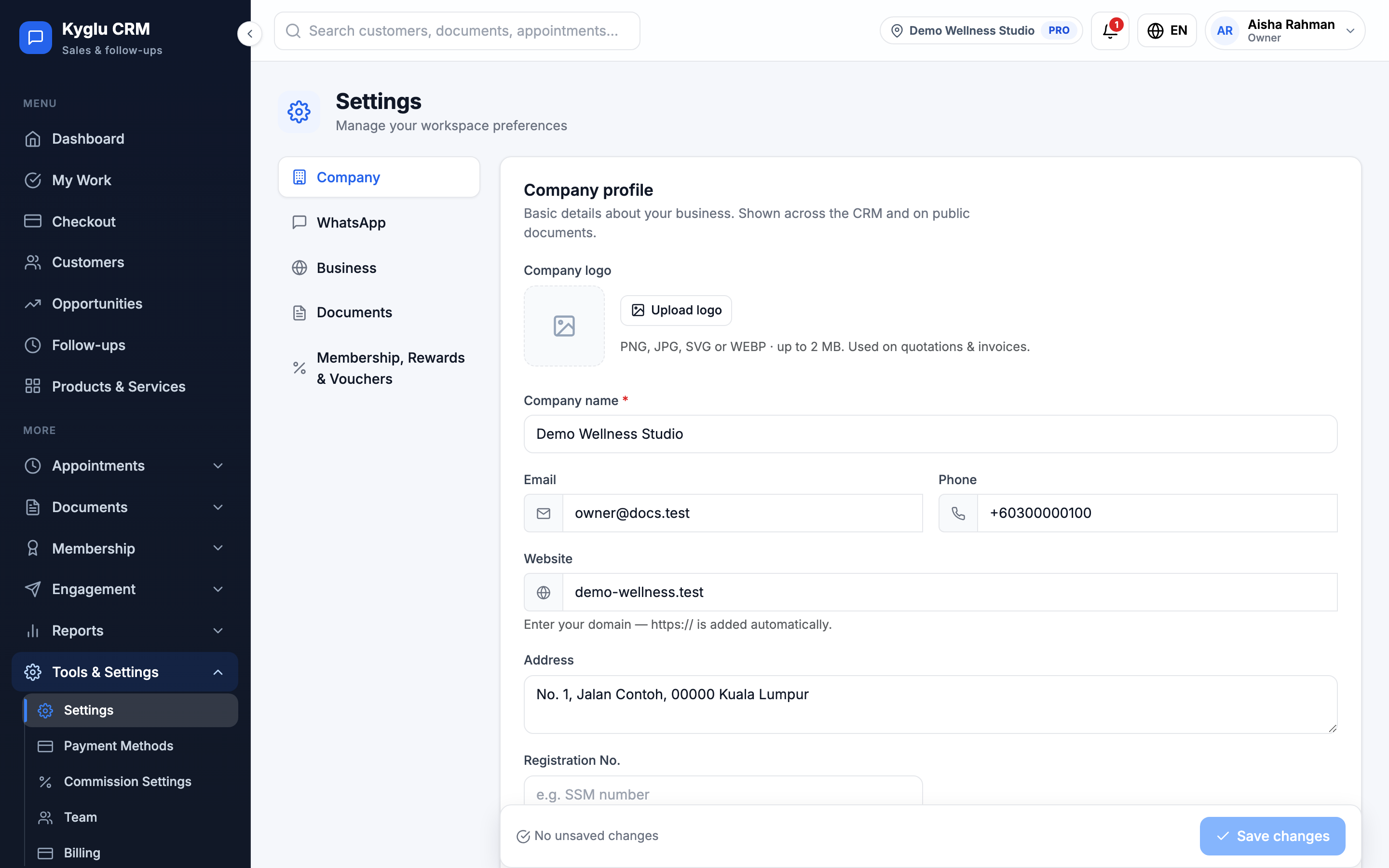
The page has five sections: Company, WhatsApp, Business, Documents and Membership, Rewards & Vouchers. Your changes in every section are saved together: click Save changes at the bottom when you're done. A red dot marks a section with a field to fix.
Company
Your business details, shown across the app and on quotations, invoices and receipts.
| Field | Description |
|---|---|
| Company logo | PNG, JPG, SVG or WEBP, up to 2 MB. Used on your documents. |
| Company name | Your business name |
| Email, Phone, Address | Your contact details |
| Website | Enter your domain. https:// is added for you. |
| Registration No. | For example your SSM number. Shown on quotation and invoice PDFs, unless you turn it off under Documents. |
WhatsApp
| Field | Description |
|---|---|
| WhatsApp business number | Used for WhatsApp quick actions and message previews. Spaces, dashes and plus signs are removed for you. |
| Default country code | Added to customer phone numbers that don't include a country code |
Kyglu CRM never sends messages from this number. You always press send in WhatsApp yourself. See WhatsApp.
Business
| Field | Description |
|---|---|
| Business industry | Decides which tools, defaults and menu items you get. See What is Kyglu CRM? |
| Country | Picking a country fills in its usual timezone |
| Currency | Used on documents and reports |
| Timezone | Used for appointments, reminders and reports |
| Date format | How dates are shown |
| Tax percentage | Added to new quotations and invoices. Use 0 for no tax. |
| Default customer language | Used when a customer has no preferred language of their own. A customer's own preference always comes first. |
Changing your industry keeps all your data. Customers, opportunities, quotations and invoices stay as they are. Industry-specific data, such as Wellness profiles, is kept too, but its menus are hidden until you switch back.
Documents
Controls how your quotations, invoices, receipts, top-up receipts and commission statements look. It has a tab for each: Common, Quotation, Invoice, Receipt, Top-up and Commission statement. Click Preview PDF on any tab to see a sample with your current settings, including unsaved changes.
Common
- Letterhead: the accent color, logo position (left or right) and logo size, shared by every document
- Company info fields: show or hide each piece of company information, and give it your own label
- Default terms / notes: printed at the bottom of every quotation and invoice PDF, separate from each document's own notes
Quotation and Invoice
- Style: Modern, Classic or Minimal. Quotations and invoices share one style, used on both the web view and the PDF. Invoices can also use a POS receipt-printer style for the PDF only.
- Fields: which document and customer details appear on the PDF
Customer fields can show a customer's wallet balance, points or package sessions to anyone who has the document. Only turn on what you're comfortable sharing.
Numbering
Each document type has a number prefix, for example QUO-, INV-, CN- (credit notes), TU- (top-ups) and RC- (receipts). Numbers restart each year.
Receipts
- Issue a receipt when an invoice is paid: turn this off if you don't want payment receipts
- Receipt style and Top-up receipt template: an A4 formal page, or an 80mm thermal slip for a receipt printer with a QR code linking to the online receipt
Commission statement
The title, footer note, layout and the parts shown on each staff member's commission statement.
The Starter plan includes the Modern style only. The PDF can still use any style. See Plans & Free Trial.
Membership, Rewards & Vouchers
Settings for customer tiers and loyalty points, with links to manage tiers, rewards and vouchers.
| Setting | Description |
|---|---|
| New customer tier assignment | Automatic: customers move up tiers based on spend and visits. Manual: staff assign each customer's tier. Applies to customers created from now on. |
| Enable loyalty points | Turns points and rewards on or off |
| Earning rate | How many points a paid invoice earns |
| Redemption rate | How many points equal 1 unit of your currency when customers redeem |
Points are added when an invoice is marked paid. A live example shows what a customer would earn and its value.
Changing the Redemption rate changes the value of every point your customers already hold. Kyglu CRM shows the before and after value and asks you to confirm.
See Customer Tiers, Rewards and Vouchers.