Commission Settings
Set how your team earns commission: a percentage of what they sell, a fixed fee for each service they perform, and optional tier bonuses and overtime pay.
Who can see it: Owner and Admin. This can't be granted to staff, because it sets pay.
Open it from Tools & Settings → Commission Settings in the menu. To see what people have earned, see the Commission report.
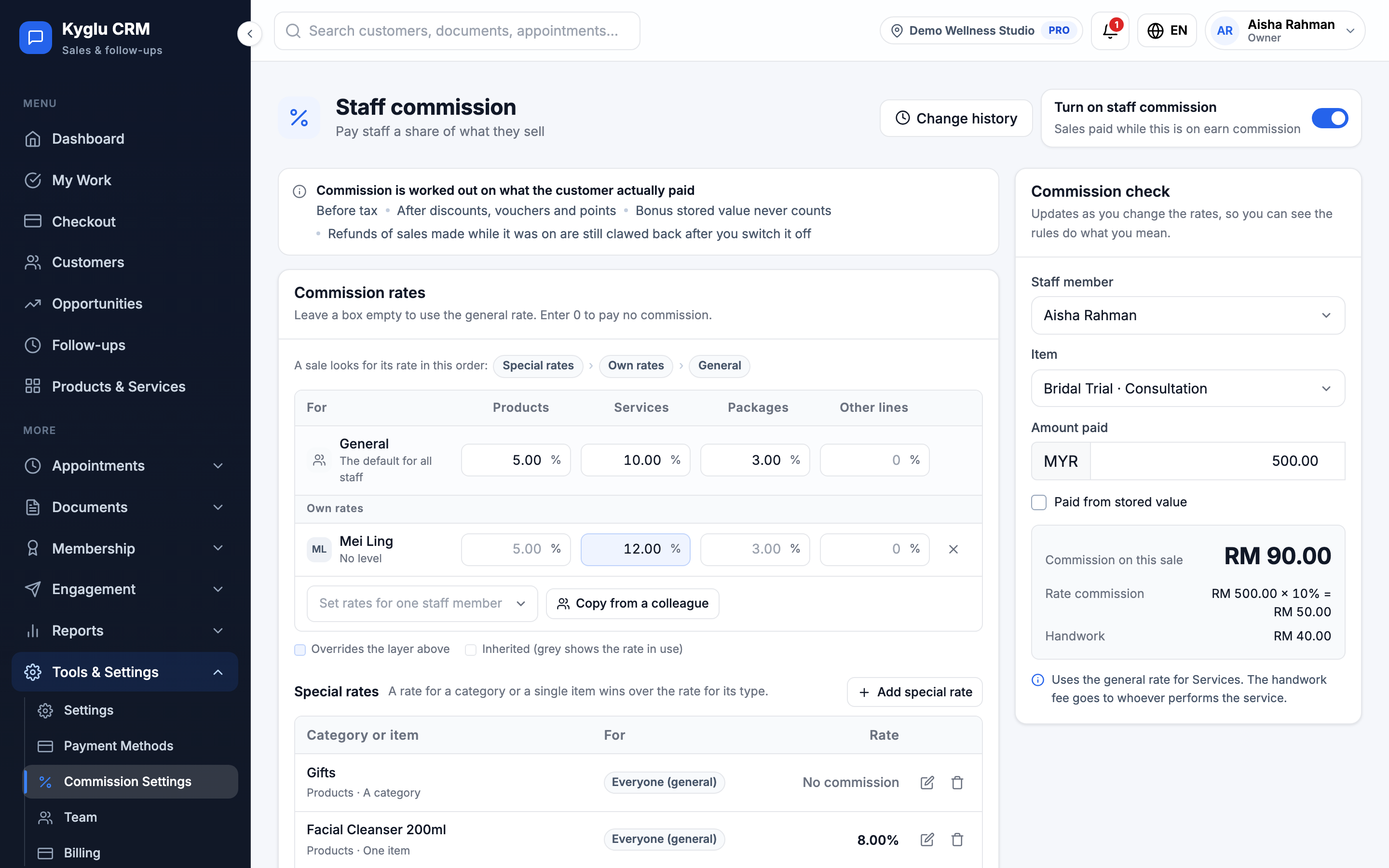
Turn commission on
Tick Turn on staff commission and click Save changes.
Sales paid while commission is on earn commission. If you turn it off later, new sales earn nothing, but refunds of earlier sales are still taken back.
Commission is always worked out on what the customer actually paid for each item: before tax, after discounts, vouchers and points. Bonus stored value never counts.
Commission rates
Under Commission rates, enter a percentage for each type: Products, Services, Packages, Other lines and Top-ups. The General row is the default for all staff.
- Leave a box empty to use the rate above it.
- Enter 0 to pay no commission.
Rates for one staff member
Click Set rates for one staff member to give someone their own rates. Their own rate wins over their level and the general rate. Empty boxes fall back to those.
To give someone the same rates as a colleague, click Copy from a colleague. Choose who to Copy from and Copy to, and tick what to copy: Sales rates, Top-up rate or Handwork fees. The person's own rates for those parts are replaced.
Which rate is used
A sale looks for its rate in this order, and uses the first one set:
- A special rate for the item
- A special rate for its category
- The rate for its type
At each step, the staff member's own rate comes first, then their level's, then the general rate.
Advanced: levels and special rates
Click Advanced to set up:
- Commission levels: tick Use commission levels to give groups of staff different rates, for example "Senior". Click Add level, then set the level's rates. Assign people to levels in the Commission level column on the Team page. Members without a level use the general rates.
- Special rates: click Add special rate to set a rate for a category or a single item. Choose who it's For (everyone, a level or one person), whether it Applies to One item or A category, and the Rate. Pick several items or categories to give them all the same rate.
Stored value
Choose when a stored value sale earns commission:
| Option | What happens |
|---|---|
| Commission when spent (recommended) | Top-ups earn nothing. Each sale paid from the balance earns normal sales commission. |
| Commission when topped up | The top-up earns commission once. Sales paid from that balance earn nothing. |
A change applies only to new top-ups. Earlier balances keep the rule they were topped up under.
When you first turn commission on and customers already have balances, you're asked whether spending those balances should earn sales commission.
Handwork fees
A handwork fee is a fixed amount paid to whoever performs a service or package session, on top of any sales commission.
- Click Edit handwork fees.
- Enter a fee for each service, service duration and package in the General column.
- To give a level or a person a different fee, add a column for them, for example with Add a column for one staff member.
- Save.
A blank General cell means the fee is not set yet. Services performed without a fee wait on the Commission report until you set one. Enter 0 for no handwork fee. To fill many blanks at once, enter an Amount and click Fill empty cells.
The performer is chosen on the invoice line, or when a package session is used. It defaults to the appointment's staff member.
More rules
Under More rules, switch on what you need:
Multi-staff services
Tick Allow several performers so a service can name more than one performer. Each person earns their own handwork fee times their share. Choose the Default split: Split equally or 100% each. You can change the shares on each service.
Monthly tiers
Tick Pay a tier bonus to add extra percentage points on a staff member's monthly sales once they reach a threshold. Click Add threshold for each band, for example "from 10,000, +2%".
| Mode | How it pays |
|---|---|
| Whole month | Reaching a threshold pays its rate on the whole month's sales. One late refund can drop the whole month a band. |
| Only the part above each threshold | Each band pays only on the sales inside it. |
Tier bonuses are paid when you confirm the month. Handwork never counts. The first table applies from this month. Later changes apply from next month.
Pay overtime
Tick Pay overtime to record extra hours, approve them, and pay them on the same monthly statement. Overtime is never reduced by a negative commission balance.
- Set each person's Hourly overtime rate. Leave it empty for someone who isn't paid overtime. Overtime multipliers aren't worked out for you, so enter a rate that already includes them.
- Tick Staff can declare their own overtime to let staff submit requests for your approval. Only staff with an hourly rate can declare.
- Under Hours staff can declare, set an Earliest start and Latest end, or leave them empty for no limit.
See Overtime.
Save your changes
Rates, switches and tiers save together when you click Save changes. The page shows how many unsaved changes you have, and Discard undoes them. Levels, special rates and copies are saved straight away.
Commission check
The Commission check estimates commission for an example sale as you change the rates, so you can see the rules do what you mean. It's a preview only. It ignores discounts, points and refunds.
Change history
Change history shows who changed which rate, fee or switch, with the old and new value.