Staff Sales
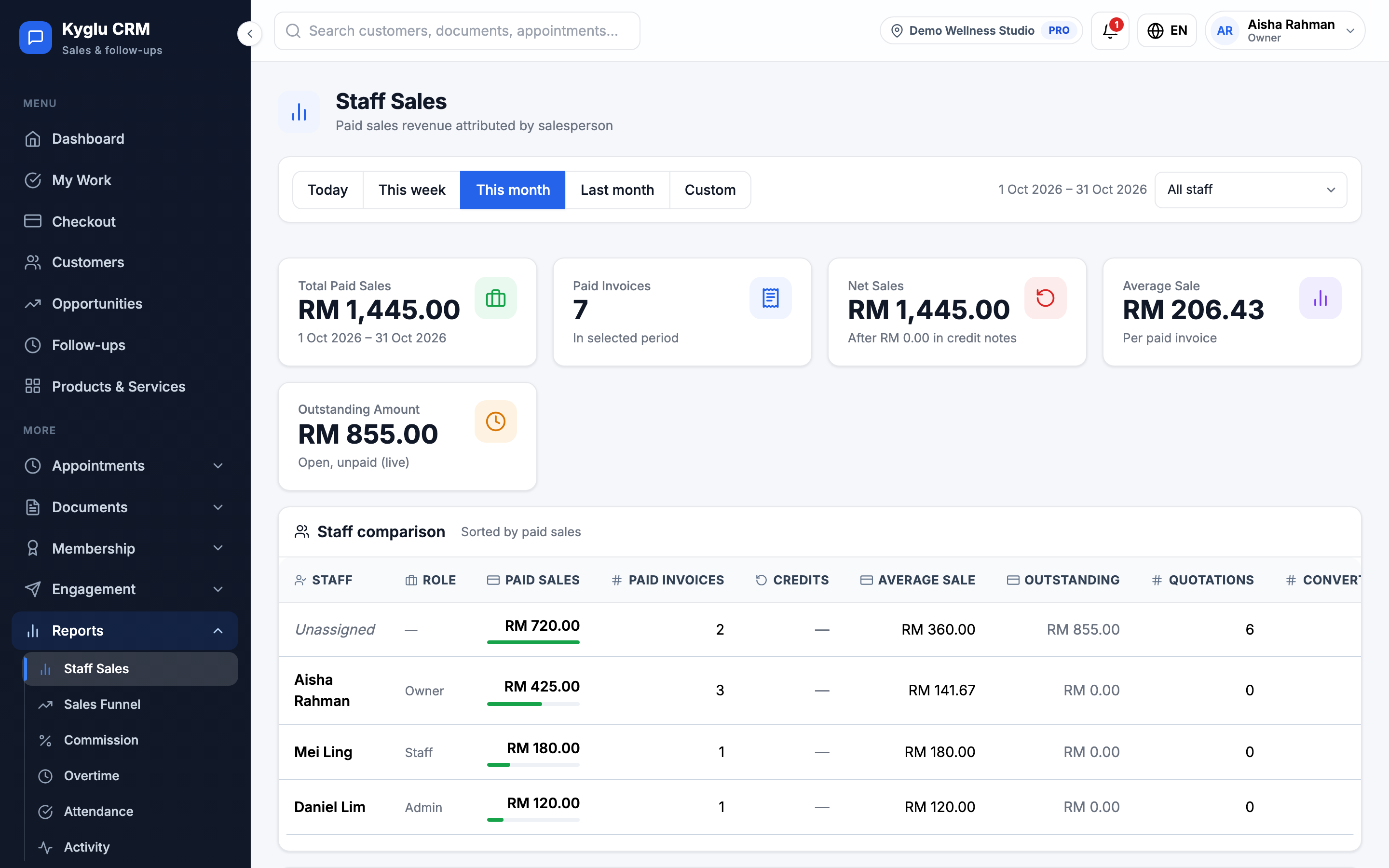
Staff Sales shows paid sales by salesperson: how much each person sold, how many invoices they closed and how many quotations they converted.
Who can see it: Everyone. The Owner, Admins and Staff with the Reports & activity permission see the whole team. Other staff see only their own sales, and the menu item is called My Sales.
Open it from Reports → Staff Sales in the menu.
Choose the dates
Pick Today, This week, This month, Last month or Custom to choose your own From and To dates. The report opens on this month.
Invoices count by the date they were paid, not the date they were issued.
Summary
| Figure | Meaning |
|---|---|
| Total Paid Sales | Paid invoices in the selected dates |
| Net Sales | Paid sales less credit notes |
| Paid Invoices | How many invoices were paid |
| Average Sale | Paid sales divided by paid invoices |
| Outstanding Amount | Open invoices not yet paid. This is live and doesn't follow the dates. |
Staff comparison
If you can see the whole team, the Staff comparison table lists each person, sorted by paid sales:
| Column | Meaning |
|---|---|
| Paid Sales, Paid Invoices, Average Sale | As in the summary, for that person |
| Credits | Credit notes against their sales |
| Outstanding | Their open, unpaid invoices |
| Quotations | Quotations they issued |
| Converted | Quotations turned into invoices |
| Conv. Rate | Converted ÷ quotations |
Sales go to the invoice's Salesperson. Invoices without a salesperson appear under Unassigned. To change who gets the credit for an invoice, see Invoices.
Use the Salesperson filter to show one person, Unassigned, or All staff. The summary follows the filter.
Paid invoices
Below the summary is the list of paid invoices behind the figures, with the customer, salesperson, paid date, total and the quotation it came from. Click an invoice to open it.
Related reports
- Branch Report: sales and money taken at each branch
- Sales Funnel: how opportunities and quotations progress
- Commission: what each person earns from their sales