Overtime
Overtime records the extra hours your team works. Once approved, overtime is paid at each person's hourly rate on the same monthly statement as commission.
Who can see it: Everyone, once Pay overtime is turned on in Commission Settings. The Owner and Admins see and decide everyone's overtime. Staff see their own records and their own rate.
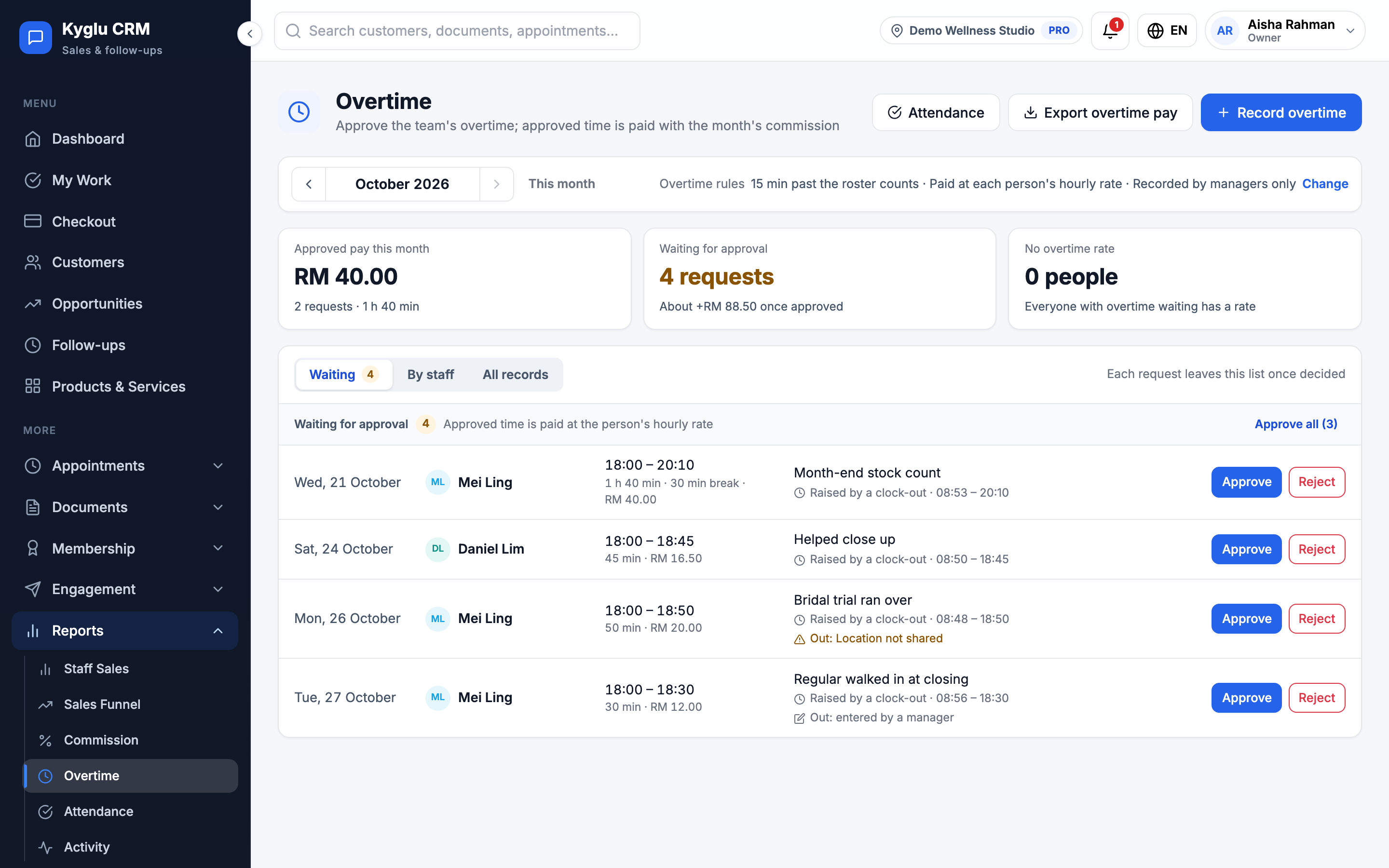
Open it from Reports → Overtime in the menu.
Record overtime
Owners and Admins can record overtime for anyone, and it's approved at once.
- Click Record overtime.
- Choose the Staff member, Date, Start and End.
- Enter any Unpaid break (minutes) and the Branch.
- Enter What it was for.
- Save.
Pay is the time worked, less the break, times the person's hourly rate. Someone without an hourly rate can't be approved: click Set rate to add one.
Staff declaring their own
If Staff can declare their own overtime is on, staff with an hourly rate can click Declare overtime. They can only declare inside the hours you set, and only for time that has started. Their request waits for approval.
Staff can Withdraw a request while it's waiting. Otherwise, they should ask a manager to record it.
From clock-outs
If you use Attendance, a clock-out past someone's rostered end raises an overtime request automatically. These show the clock times they came from.
Approve overtime
The page shows one month at a time. An orange dot marks months with requests waiting.
| Tab | What it shows |
|---|---|
| Waiting | Every request waiting for approval, oldest first |
| By staff | Each person's approved time and pay for the month, with their waiting requests |
| All records | Every record in the month |
For each waiting request, click Approve or Reject. Rejecting needs a reason.
Approve all approves every request that has an hourly rate and no problem with its clock record. Decide the rest one by one. If a request says Check the clock record before approving, look at it on the Attendance page first.
The person is notified when their request is approved or rejected. Owners and Admins are notified when staff declare overtime.
| Status | Meaning |
|---|---|
| Waiting | Waiting for approval |
| Approved | Booked as pay at the rate in force at approval |
| Rejected | Not paid |
| Withdrawn | Cancelled by the staff member |
| Voided | Approved, then taken back |
Void approved overtime
An approved record can't be edited. If it was wrong, click Void and give a reason. Its pay is taken back. If the month is already confirmed, the amount is deducted from the current month.
Export
Click Export overtime pay to download the month's records, with the rate and amount for approved ones.
Overtime only records pay. It doesn't open booking slots. To change when staff are available, edit the roster.