Commission
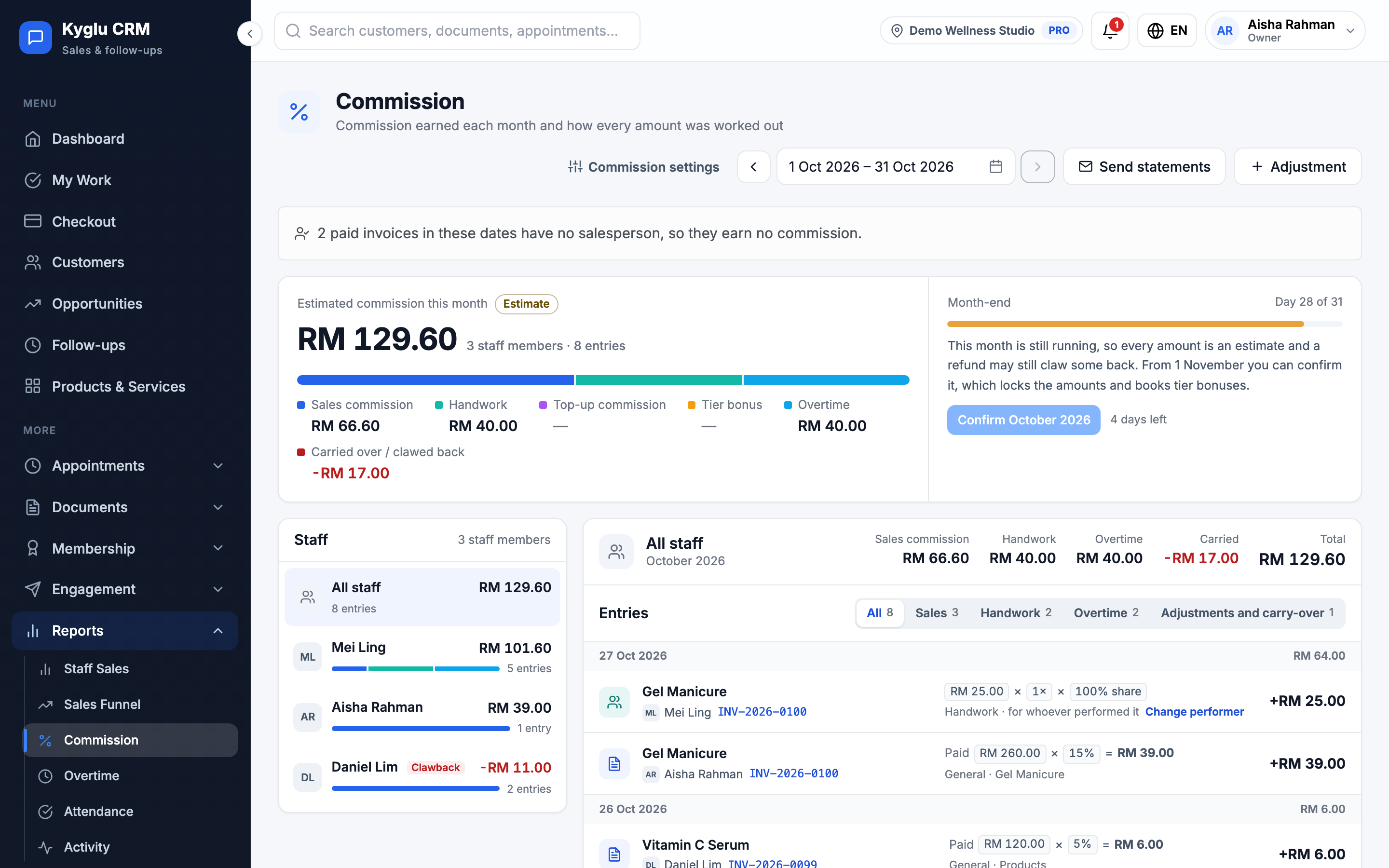
The Commission report shows what each team member earned in a month, how every amount was worked out, and what has been paid. It's where you close the month and record payments.
Who can see it:
- Owner and Admin see the whole team and manage month-end. The menu item is Commission.
- Staff see only their own commission, as My Commission. It appears once commission or overtime is turned on.
Open it from Reports → Commission in the menu. To set rates, see Commission Settings.
How commission is earned
| Kind | Who earns it | When |
|---|---|---|
| Sale | The invoice's salesperson, a rate × what the customer paid for each line | When the invoice is paid |
| Top-up | The top-up's salesperson, only if top-ups earn commission | When the top-up is recorded |
| Handwork | Whoever performed a service, a fixed fee per service | When the invoice is paid or a package session is used |
| Tier bonus | Staff whose monthly sales reach a threshold | When you confirm the month |
| Overtime | Whoever worked approved overtime | When it's approved |
| Adjustment | Anyone, with a reason | When you add it |
Commission is worked out on what the customer actually paid: before tax and after discounts, vouchers and points. Bonus stored value never earns commission.
Each amount is worked out with the rates in force when the sale happened. Changing a rate later doesn't change past commission.
Paid invoices without a salesperson earn no commission. The report tells you how many there are.
Read the report
The report opens on the current month. Use Previous month and Next month, or choose your own dates.
- The top shows the total for the month and what it's made of: sales, top-ups, handwork, refunds, tier bonus and overtime.
- By staff member lists the team. Click someone to see their entries.
- Entries are grouped by day. Each one shows the document, item and how it was worked out, for example
200.00 × 5% = 10.00. Filter by Sales, Top-ups, Handwork, Overtime, or Adjustments and carry-over.
Month-end, payments and statements work on one whole month. If you choose other dates, the report only shows the entries, with links to each month in the range.
Refunds
When you issue a credit note, the sales commission on the refunded items is taken back. It shows as a Clawback. Refunding a sale doesn't take back handwork. Reversing a package session does.
Services waiting for handwork
A performed service waits under Waiting for handwork when it has no performer (Needs a performer) or no fee (Fee not set). Click Assign or Set fee to sort it out.
To change who performed a service after it was booked, click Change performer and give a reason. The handwork is reversed and booked again for the new performers.
Sales held for review
Rarely, Kyglu CRM can't save the rates at the moment of a sale. Those sales are held and no commission is worked out for them. Check that your rates are as they were then, and click Work out with today's rates.
Close the month
A month is open while it's running, and every amount is an estimate. Once it ends you can confirm it.
- Go to the month and check the entries.
- Click Confirm [month].
- Confirm. Tier bonuses are booked and the month is locked.
You can't confirm a month when:
- an earlier month is still open. Confirm months in order.
- some sales are still being worked out. Try again in a minute.
- sales are held for review.
Services still waiting for a performer or fee, and overtime still waiting for approval, are booked into a later month once they're sorted out. You're asked to acknowledge them before you confirm.
A confirmed month never reopens. Anything that changes it later, such as a refund, is booked into the current month instead.
Negative balances
If refunds leave someone below zero for the month, the shortfall is Carried forward and deducted from the next month, where it shows as Brought forward. Overtime is still paid in full.
For someone who has left the team, the balance isn't carried. It shows as Negative balance for you to settle with an adjustment.
Pay commission
After confirming a month, record what you paid each person:
- Pick a staff member.
- Click Record payment.
- Enter the Amount, Paid on date, Method and an optional Note.
The status shows Unpaid, Part paid, Paid or Nothing due. You can't pay more than is due.
If you recorded a payment by mistake, click Void and give a reason. It stays listed as voided, and its amount becomes due again.
Adjustments
To add a bonus or a deduction by hand, click Adjustment. Choose Add or Deduct, enter the amount and a reason. Adjustments go into the current month and show in the staff member's entries.
Statements
Click Statement to open a person's monthly commission statement as a PDF. An open month prints as an estimate.
| Layout | What it contains |
|---|---|
| Summary statement | Amounts, one row per item and rate, and signature lines |
| Short statement | Amounts and signature lines only, for printing and signing |
| With every entry | The summary, then every entry for checking |
To change the title, footer note, layout and what prints, go to Company Settings → Documents → Commission statement.
Email statements
- Click Send statements.
- Tick the Recipients. Staff without an email address can't be picked: add one on the Team page.
- Choose whether to Include every entry and how it was worked out and Attach the PDF statement, and add an optional Note.
- Check the Preview and click Send.
Each person gets the email in their own language. If the month isn't confirmed yet, the amounts are marked as estimates. The report shows whether each email was sent.
Export
Click Export CSV to download every entry for the whole team in the selected dates.
What staff see
Staff see their own total, entries, an estimate of their tier bonus, their statement, and their Payment status: what was paid, when and how, and what's still due. They don't see your payment notes.