Attendance
Attendance lets staff clock in when they start work and clock out when they leave. It records who was there and for how long. Time worked past someone's rostered hours goes to a manager as overtime to approve.
Who can see it:
- Owner and Admin always see the page, because it's where attendance is turned on. They see everyone's records and settle anything that needs a look.
- Staff see it once attendance is on, with their own records only.
Open it from Reports → Attendance in the menu.
Turn on attendance
-
On the Attendance page, click Settings.
-
Tick Take attendance.
-
Set the rules:
Setting Description Default Distance that counts as at the shop (metres) A clock-in further away is still recorded, but flagged for review 200 Hours before an open record counts as a missed clock-out A record still open this long after clock-in is handed to you to complete 16 Grace before a clock-in is late (minutes) A clock-in later than the roster's start by more than this is marked late 10 Minutes past normal hours before overtime counts Time past the rostered end counts as overtime once it reaches this many minutes, counted from the rostered end. 0 counts every minute. 15 -
Save.
Location is checked against your branches' addresses, or your company address. If none has a location, clock-ins can't be checked. The page tells you so.
Clock in and out
Once attendance is on, everyone except the Owner gets a Clock in button in the top bar and on the Attendance page.
- Tap Clock in when you start work. Your location is recorded.
- Tap Clock out when you leave.
If you're past your normal hours, you're asked What the extra time was for and how much of it was an Unpaid break. That time goes to a manager as overtime, if overtime pay is on and you have an hourly rate.
A punch is never refused because of location. If you're away from the shop or your phone's location is imprecise, the time is kept and flagged for a manager to check.
If you forget to clock out, the record becomes No clock-out after the set number of hours, and a manager enters the time you left.
Lateness is only a mark on the record. Kyglu CRM doesn't deduct pay or track leave.
Review attendance
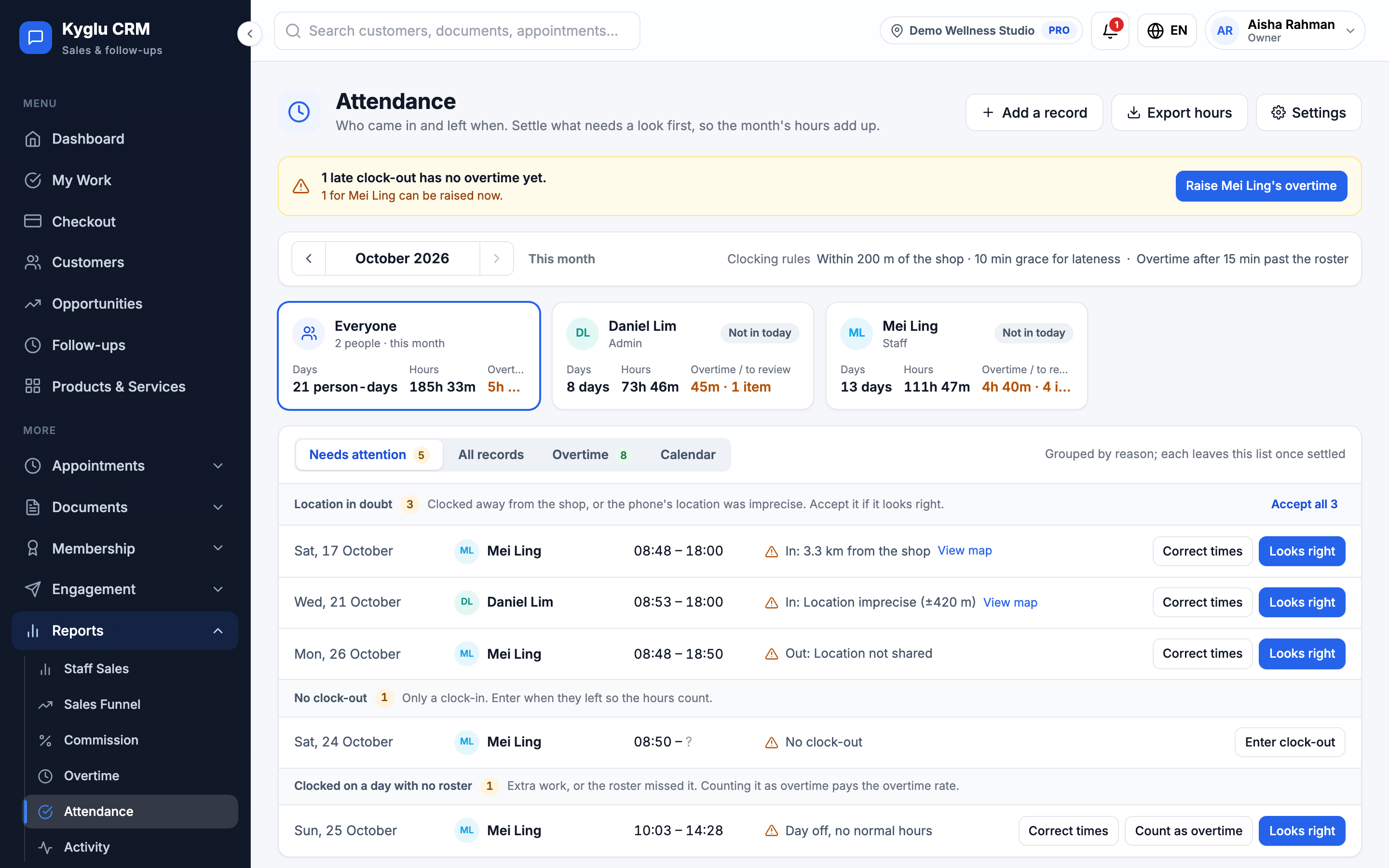
The page shows one month. An orange dot in the month picker marks months with records to review.
At the top is a card for each person, showing their days, hours, overtime, anything to review, and whether they're clocked in now. Click a card to filter the lists.
| Tab | What it shows |
|---|---|
| Needs attention | Records to settle, grouped by reason |
| All records | Every record, newest first |
| Overtime | Clock-outs past the rostered end |
| Calendar | Who came in each day, for how long, and any overtime. Days your branches are closed are marked. |
Needs attention
| Reason | What to do |
|---|---|
| Location in doubt | Clocked away from the shop, or the location was imprecise. Click View map to check, then Looks right. Use Accept all for several at once. |
| No clock-out | Click Enter clock-out and enter when they left, so the hours count. |
| Clocked on a day with no roster | Extra work, or the roster missed it. Click Count as overtime and choose when the overtime starts. This is approved at once. |
Correct a record
Click Edit record and change the Clock-in or Clock-out, with a reason. The change is kept under the record. Overtime still waiting follows the new times. Overtime already approved stays as it is: void it on the Overtime page if it no longer applies.
To add a record for someone who didn't clock in, click Add a record.
Overtime not raised
Some late clock-outs don't raise overtime, for example when overtime pay is off or the person has no hourly rate. A notice lists them. Set the missing rates, then click Raise all, or click the not raised chip on a record.
Export
Click Export hours to download the month's records, with hours, normal end, overtime and lateness.