Customer Tiers
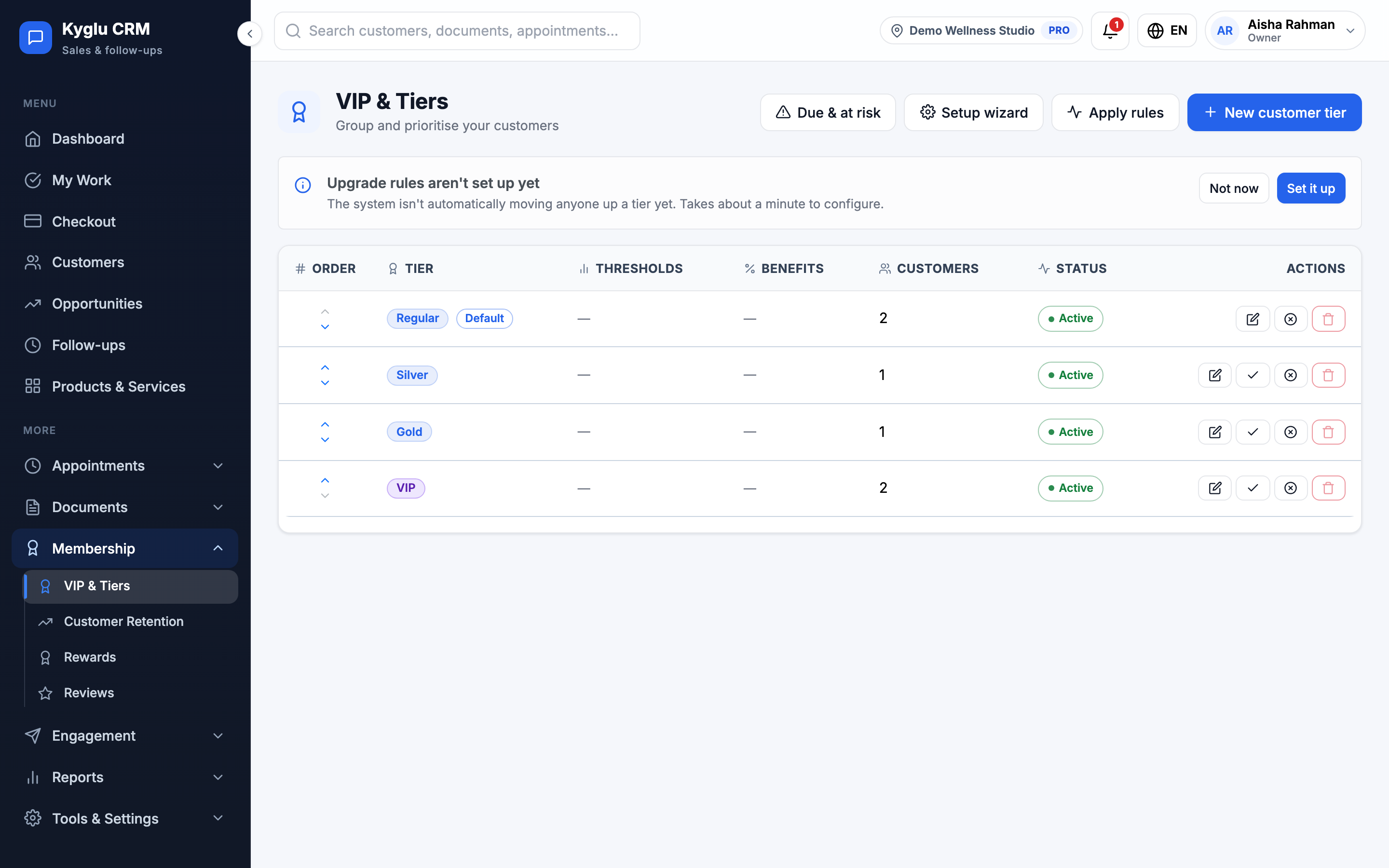
Customer tiers group your customers, for example Regular, Silver, Gold and VIP. A tier can give its customers extra loyalty points and automatic discounts, and customers can move up tiers automatically as they spend and visit.
Who can see it: Everyone. Creating and editing tiers needs the Owner, an Admin, or Staff with the Catalog permission.
Open it from Membership in the menu. The menu item's name depends on your industry:
| Industry | Menu item |
|---|---|
| General business | Customer Tiers |
| Wellness / Beauty / Spa | VIP & Tiers |
| Renovation | Customer Categories |
| Auto Workshop | Customer Groups |
| Real Estate, Insurance | Client Segments |
Your account starts with a set of tiers for your industry. You can rename, change or delete them.
Set up upgrade rules
If no tier has upgrade rules yet, the page shows Upgrade rules aren't set up yet. Click Set it up to open the setup wizard:
- Choose how customers upgrade: By spend, By visit count, or Spend + visits (both required).
- Choose a starting template: Simple, Standard, or Smart suggestion, which is based on your existing customers' real spend and visits.
- Preview how many customers would land in each tier. Nothing is saved yet.
- Click Confirm & apply.
You can change every tier afterwards.
Create or edit a tier
Click New tier, or Edit on a tier.
| Field | Description |
|---|---|
| Name | For example "Gold" |
| Code | A short code used for imports and reports |
| Colour | Shown on the customer's card and in badges |
| Description | Optional |
| Points multiplier | How fast points build up for customers on this tier. For example, 2× earns double points. |
| Other benefits | One per line. Shown to customers on their membership page. |
| Upgrade mode | Calculated automatically, or Manual only if staff assign this tier by hand |
| Upgrade conditions | Min. lifetime spend and Min. visits. A customer must meet every condition you fill in. |
| Maintenance / downgrade conditions | Optional. How often to check (Check every), and the Min. spend per period and Min. visits per period to keep the tier. Customers who fall short drop one tier. |
| Tier is active | Inactive tiers aren't assigned |
| Default tier for new customers | The tier new customers start on |
The Rule summary explains the tier in plain words before you save.
Offer rules
Offers are discounts given automatically at checkout to customers on the tier. Click Add offer:
| Field | Description |
|---|---|
| Offer name | For example "Birthday treat" |
| When it applies | Anytime, Birthday (the day, week or month) or a Date range |
| How it discounts | Percent off or Amount off |
| Applies to | The Whole bill, whole categories (all services, products or packages), or specific items |
| Minimum spend | Optional |
| Uses per customer | How many times each customer can use it, and how often that resets |
| Stacks with other offers | When off, each line takes the single best offer |
Customers on the Customer App get a notification on the morning their birthday offer starts.
How tiers are calculated
For customers on automatic assignment:
- Their tier is recalculated each time they pay an invoice, and again every night.
- They get the highest active tier whose conditions they meet, based on their paid lifetime spend (less refunds) and visits.
- Customers on the Customer App get a notification when their tier changes.
To apply rule changes to everyone now, click Apply rules. Kyglu CRM previews which customers would change tier, and warns you about any downgrades, before you confirm.
Due & at risk lists customers whose tier is checked soon, and whether they're on track to keep it.
A customer's tier
On the customer's profile, choose the Assignment mode:
- Automatic — calculate from spend/visits: the profile shows how much more spend or how many more visits they need for the next tier.
- Manual — I choose the tier: you pick the tier and it never changes automatically.
New customers start on automatic or manual depending on New customer tier assignment in Company Settings.
Order, deactivate or delete
Use Move up and Move down to order tiers from lowest to highest. A tier with customers on it can't be deleted. Deactivate it instead.