My Work
My Work is your to-do list for the day. It shows today's appointments and ranks the opportunities, follow-ups, quotations and invoices that need you, so you always know what to do next.
Who can see it: Everyone. Staff land on My Work when they sign in. You can also open it from the sidebar or the account menu.
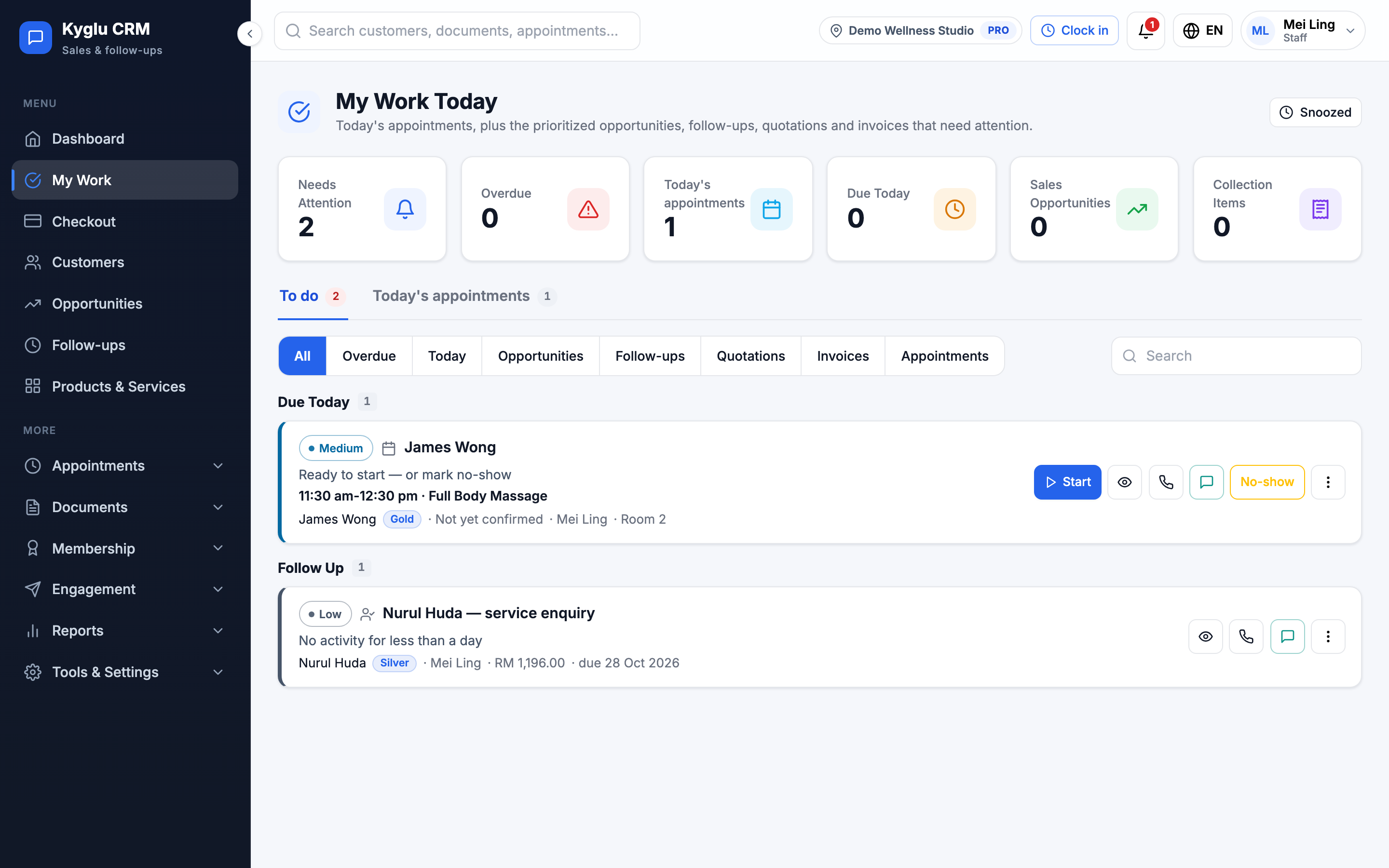
The two tabs
| Tab | What it shows |
|---|---|
| To do | Items that need action, most urgent first |
| Today's appointments | Today's appointments, with the next one at the top |
The To do list
Items are grouped by urgency:
| Group | Meaning |
|---|---|
| Critical | Needs action now |
| High Priority | Should be handled soon |
| Due Today | Due before the end of today |
| Follow Up | Worth a look when you have time |
Each item says why it's on the list, for example:
- Follow-up overdue by 2 days
- New opportunity not contacted for 1 day
- Sent 3 days ago with no reply (a quotation)
- Accepted quotation not yet invoiced
- Invoice overdue by 5 days
- Only 1 session left, or Package expiring soon
- New booking request awaiting confirmation
Filter the list
Use the chips at the top to narrow the list: All, Overdue, Today, Opportunities, Follow-ups, Quotations, Invoices, Appointments.
If you can see the whole team's work, a menu lets you switch between My work, All staff, Unassigned or a single team member. Owners and Admins can always do this. Staff can do it when they have the Reports & activity permission.
Act on an item
Depending on the item, you can:
| Action | What it does |
|---|---|
| Add follow-up | Plan the next call or message, with a date and a note |
| Convert | Turn an accepted quotation into an invoice |
| Mark paid | Record that an invoice is paid |
| Confirm appointment | Confirm a booking that is waiting |
| Snooze… | Hide the item until later |
| Dismiss | Remove the item from your list |
Snooze an item
Snoozing hides an item from your list until a time you choose: 1 hour, Later today, Tomorrow morning, 3 days or Custom. It doesn't change the record itself or stop any emails.
To see snoozed items, switch to the Snoozed view. Click Un-snooze to bring an item back early.
My Work shows up to a fixed number of items at a time. If there are more, a notice says so. Resolve or snooze items to see the rest.
Today's appointments
This tab lists today's appointments with their status (Awaiting confirmation, Not yet confirmed, Confirmed, In progress, Completed, No show). Switch between Mine and Whole shop.
From an appointment you can:
- Check in a customer who has arrived
- Go to Checkout or Collect payment
- Send a WhatsApp reminder, which opens WhatsApp with a reminder message already written
- Open the calendar for the full day
See Appointment Calendar for more.