Finding Your Way Around
This page explains the main screen layout and the two kinds of dashboard.
The screen layout
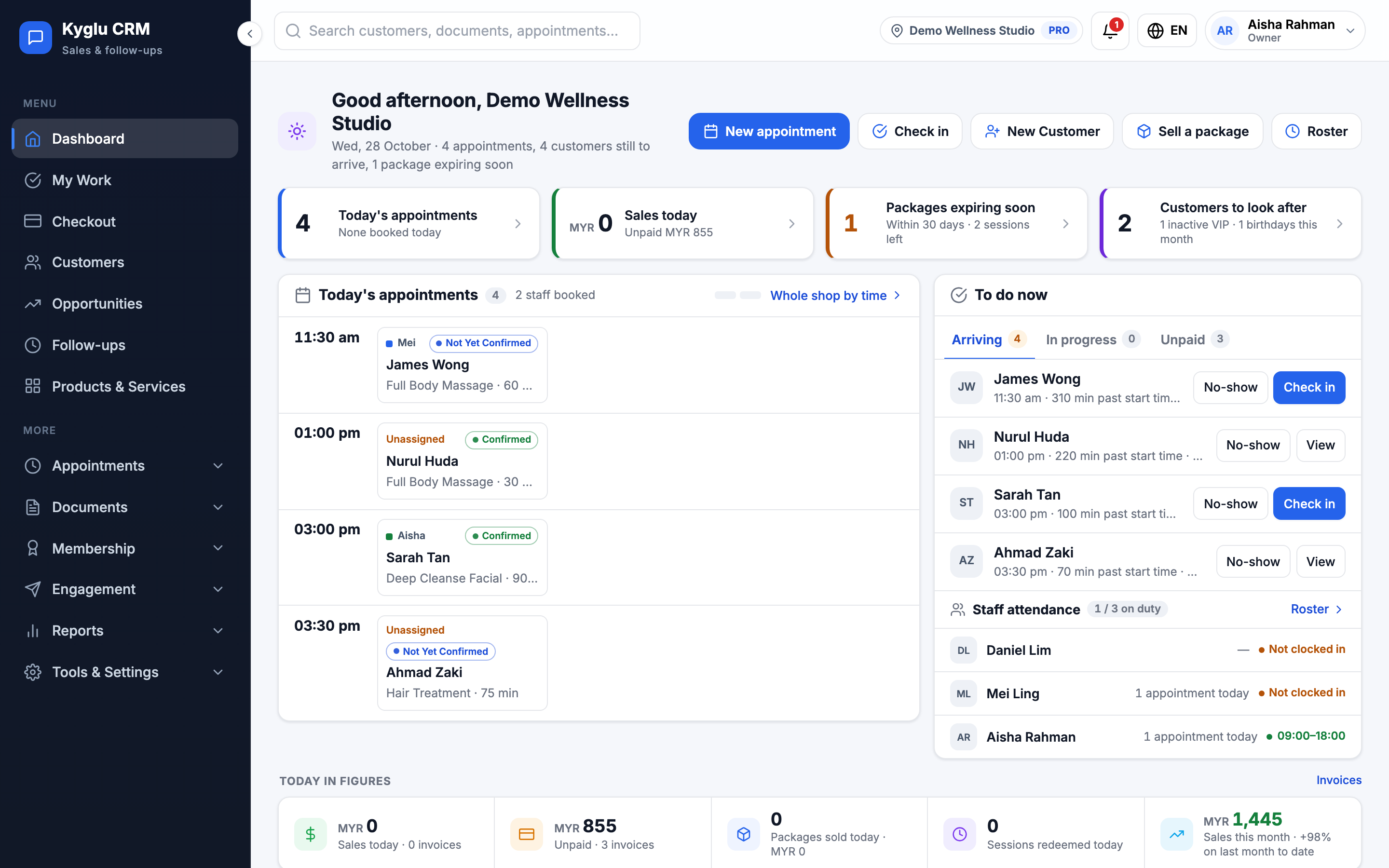
| Area | What it does |
|---|---|
| Sidebar menu (left) | Daily pages at the top, then groups that expand: Appointments, Documents, Membership, Engagement, Reports and Tools & Settings. You can collapse the sidebar to make more room. |
| Search (top bar) | Search customers, documents and appointments |
| Branch switcher (top bar) | Only shown when your company has more than one branch and you are allowed to switch. It sets which branch your pages open on. |
| Notification bell (top bar) | Unread in-app notifications, such as new bookings. Click View all for the full list. |
| Account menu (your initials) | Your role and plan, My Work, Security, Store settings (Owner and Admin) and Log out |
| Language | Change the app language. Kyglu CRM is available in English, Bahasa Melayu, Bahasa Indonesia, Thai, Vietnamese, and Simplified and Traditional Chinese. |
The daily menu
These pages are always at the top of the sidebar:
| Menu item | What it's for |
|---|---|
| Dashboard | An overview of today and the business |
| My Work | Your personal to-do list. See My Work. |
| Checkout | Take payment for products, services and packages |
| Customers | Your customer list and profiles |
| Opportunities | Your sales pipeline |
| Follow-ups | Calls, messages and visits you've planned |
| Products & Services | What you sell. Staff can view this page but can't edit it. |
The other groups show different items depending on your role, industry and settings. Each guide says who can see a feature.
Which page opens when you sign in
- Owner and Admin open on the Dashboard.
- Staff open on My Work.
The dashboard
Your industry decides which dashboard you get.
Sales dashboard (most industries)
The sales dashboard focuses on your pipeline and what needs chasing.
| Section | What it shows |
|---|---|
| Summary line | How many follow-ups are overdue and how many tasks are urgent, or "Nothing overdue or urgent right now" |
| Quick actions | New Customer, New Opportunity, New Follow-up, New Quotation |
| Attention cards | Overdue follow-ups, urgent tasks, today's appointments and unpaid invoices |
| Business value | Pipeline value of open opportunities, value won this month, quotation value and invoice value (including how much is unpaid) |
| Today's Work | The most urgent items from My Work. Click View My Work for the full list. |
| Follow-ups | Overdue follow-ups and today's follow-ups. From each one you can Send WhatsApp, Mark done or reschedule it. |
Wellness dashboard (Wellness / Beauty / Spa)
The wellness dashboard focuses on today's appointments and looking after clients.
| Section | What it shows |
|---|---|
| Summary line | Today's appointments, customers still to arrive and packages expiring soon |
| Quick actions | New appointment, Check in, Sell a package |
| Today's appointments | Who's booked today, who's next and how many staff are with a customer now |
| To do now | Customers Arriving, services In progress and Unpaid visits, with a WhatsApp payment reminder |
| Staff attendance | Who's on duty and who has clocked in. Owner and Admin only. |
| Today in figures | Sales today, unpaid invoices, packages sold, sessions redeemed and sales this month |
| Packages expiring soon | Packages with sessions left that expire soon, with Remind and Renew buttons |
| Customer care | Inactive VIP customers and birthdays this month, with a link to Retention |
Staff without the Reports & activity permission see their own sales figures instead of the whole shop's.
tip
The WhatsApp buttons on the dashboard open WhatsApp with a message already written. Check the message before you press send. See WhatsApp.