Scheduled Emails
A scheduled email is a one-time email to a single customer, sent automatically at a time you choose. Use it for a reminder or a personal note you want to send later.
Who can see it: Everyone. Staff see and manage the emails they scheduled. The Owner, Admins and Staff with the Marketing & automation permission see everyone's.
Open it from Engagement → Scheduled Emails in the menu, or click Schedule email on a customer's profile.
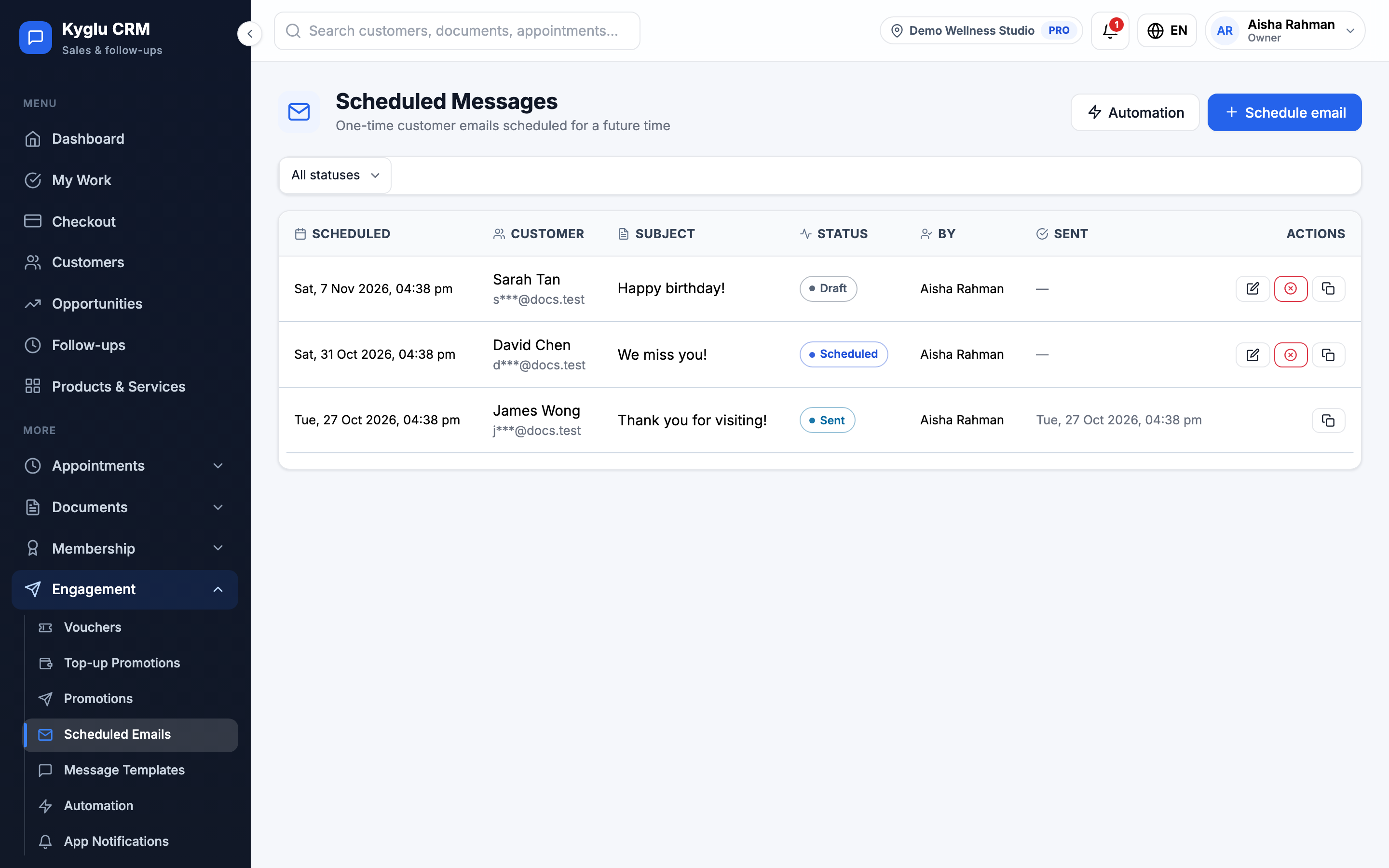
Schedule an email
- Click Schedule email.
- Choose the Customer. Only customers with an email address are listed.
- Enter the Subject and Message.
- Choose when to send it: Later today, Tomorrow morning, or a Date and Time. The time is in your company's timezone and must be in the future.
- Click Schedule.
The form shows the customer's preferred language as a reminder. The email is sent exactly as you write it. Kyglu CRM doesn't translate it.
Manage scheduled emails
| Status | Meaning |
|---|---|
| Draft | Saved, not scheduled |
| Scheduled | Waiting to be sent |
| Processing | Being sent now |
| Sent | Delivered to the mail server |
| Failed | Couldn't be sent |
| Cancelled | Stopped before sending |
| Skipped | Not sent, for example because the customer no longer has an email address |
- You can Edit or Cancel an email while it's a draft or scheduled.
- Duplicate copies an email so you can send it again or to someone else.
- Open an email to see its delivery details and who created it.
Emailing many customers
Scheduled emails go to one customer at a time. For messages sent automatically when something happens, such as an overdue invoice, see Automation. To reach all your app customers at once, use Promotions.