Promotions
Promotions are marketing campaigns sent to your customers in the Customer App, for example "Weekend 20% off facials". A promotion lands in each customer's in-app inbox and can also send a push notification. You can also show promotions on your store card in the app.
Who can see it: Owner, Admin, and Staff with the Marketing & automation permission.
Open it from Engagement → Promotions in the menu.
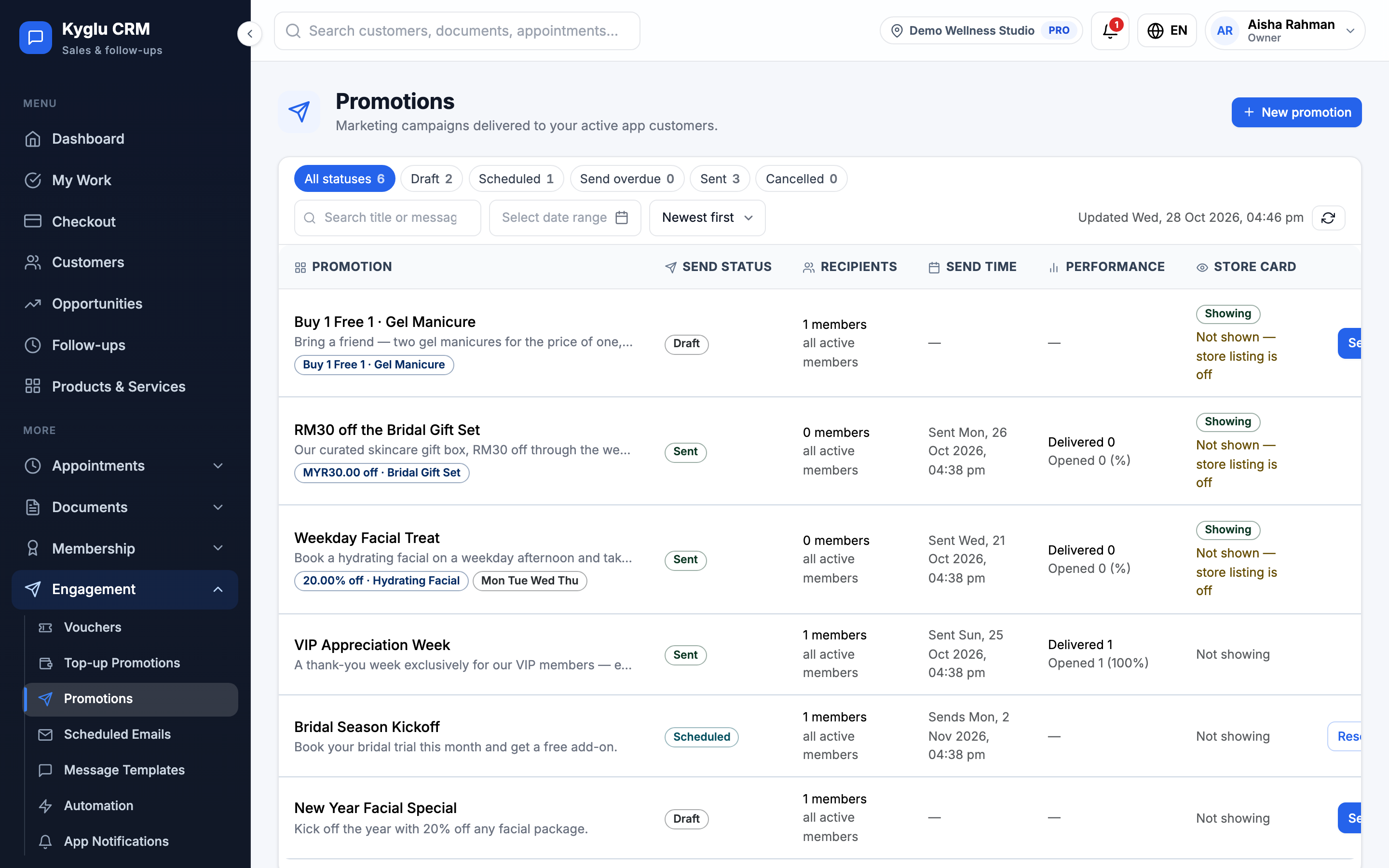
Promotions reach customers who use the Customer App. They aren't sent by WhatsApp, SMS or email.
Create a promotion
-
Click New promotion.
-
Under Basics, enter a Title and Message, and optional Terms. Upload an Image (JPG, PNG or WebP, up to 2 MB) if you like.
-
Under Offer (optional), choose a Discount:
Discount Description No discount An announcement only Percentage / Fixed amount A discount on chosen services or products, or all of them Custom wording Your own badge text, for example "Buy 1 Free 1" Trial price A special price on chosen items. Each customer can use it once, on one of the items. -
Under Audience and display window:
- Limit to member tiers: leave empty for all members. Members with no tier don't get a tier-limited promotion.
- Valid at outlets: shows which branches honour the offer. It's still sent to every member.
- Validity period, Which days and the time of day the offer applies, for example weekdays 12:00 to 18:00.
- Send a push notification: turn off for a standing benefit customers can find in their inbox without an alert.
-
Under Advanced settings, add a Link if you want a tap to open your website or a survey. It must start with
https://. Leave empty to open your store page. -
Check the Preview of how it looks in the app, then click Save draft.
Send a promotion
- Click Publish on the promotion.
- Choose Send now or Schedule for a later time.
- Check the number of recipients and the preview, then confirm.
Push notifications go only to customers who allow marketing notifications. Everyone in the audience gets it in their inbox. Customers who already received the promotion don't get it twice.
Sending can't be undone. If you cancel a sent promotion, it's removed from the store card, but customers keep the inbox message.
Statuses
| Status | Meaning |
|---|---|
| Draft | Not sent yet |
| Scheduled | Will be sent at the chosen time. Click Cancel schedule to return it to a draft. |
| Send overdue | The scheduled time passed without sending. Click Send now or Reschedule. |
| Sent | Delivered |
| Cancelled | Stopped |
Show on your store card
Promotions can appear on your store card in the Customer App, where people browsing for a store can see them. Click Show on store card on a promotion, and drag to change the order.
- Your plan sets how many promotions you can show: 1 on Starter, 3 on Pro and 5 on Business. See Plans.
- Your store listing must be turned on in Booking setup.
Each promotion shows whether customers can see it, and if not, why: for example it's ended, it starts later, or you're above your plan limit.
Results
The list shows how many customers each promotion was delivered to and how many opened it. Click View report for the campaign's open rate. Duplicate copies a promotion to reuse it.
Not the same as
- Top-up Promotions: preset wallet top-up packages
- Customer tier offers: discounts applied automatically at checkout
- Vouchers: codes staff enter on an invoice