Message Templates
Message templates are reusable WhatsApp messages. When you send one, its variables are replaced with the customer's real details, so your team doesn't have to type the same message again and again.
Who can see it: Everyone can use templates. Creating, editing and deleting them needs the Owner, an Admin, or Staff with the Marketing & automation permission.
Open it from Engagement → Message Templates in the menu.
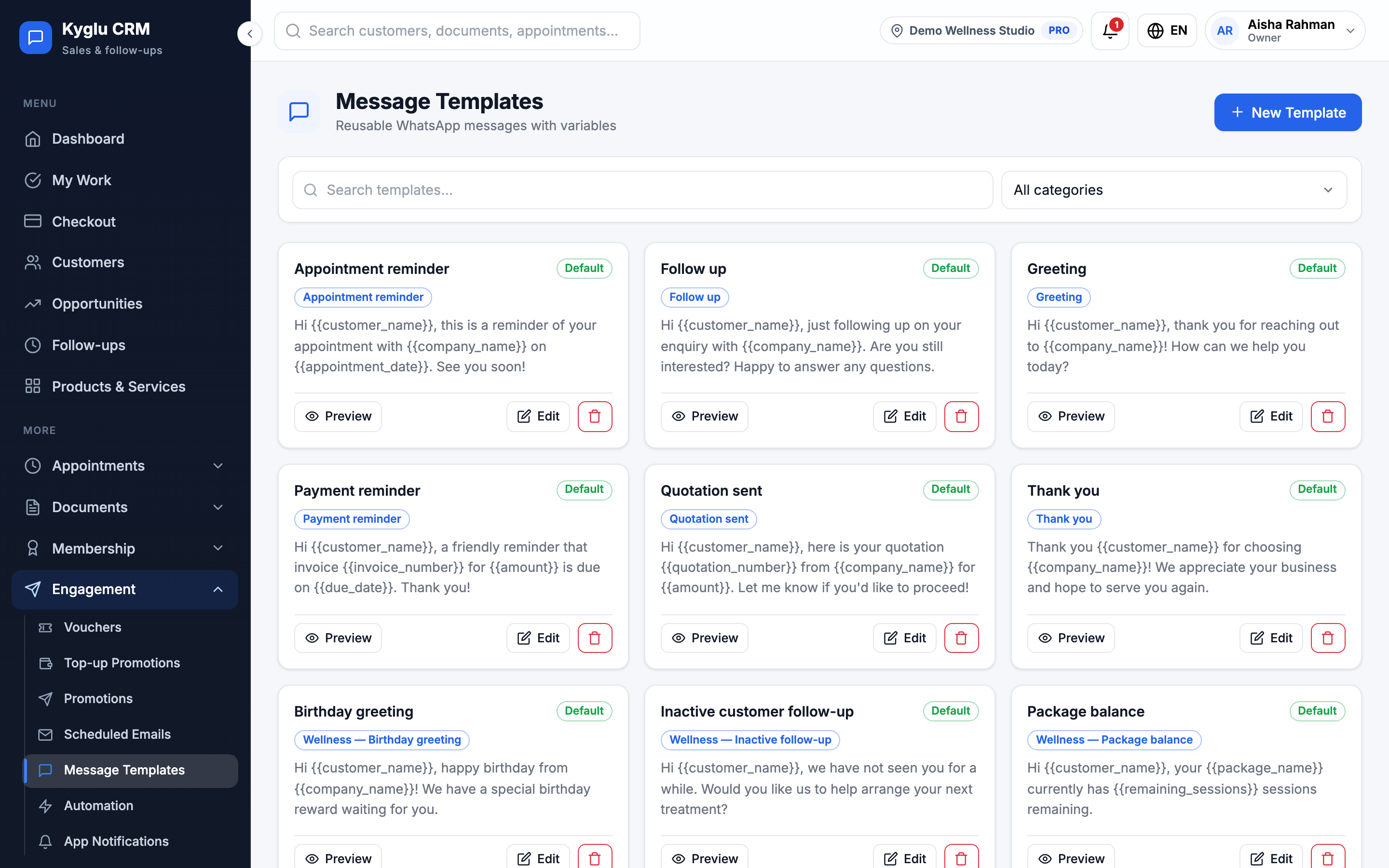
When you set up your account, Kyglu CRM adds starter templates for you. Wellness / Beauty / Spa accounts also get templates for birthdays, expiring packages, inactive clients, VIP rewards and package balances.
Create a template
-
Click New Template.
-
Fill in the form:
Field Description Template name For your team only. Customers never see it. For example "Reminder the day before an appointment". Category Decides where the template is offered, for example Payment reminder templates appear when you remind a customer to pay. Message body The message. Click Use preset copy to start from a ready-made message for the category. Mark as default for its category This template is picked first for its category Allow staff to edit before sending When off, staff send the message exactly as written -
Check the WhatsApp preview, which is filled with sample customer details.
-
Click Save & enable, or Save draft to finish it later.
Categories
| Category | Used for |
|---|---|
| Greeting | Saying hello to a new customer |
| Follow up | Checking in after a conversation |
| Quotation sent | Sending a quotation link |
| Payment reminder | Reminding a customer to pay an invoice |
| Appointment reminder | Reminding a customer about an appointment |
| Thank you | After a purchase or visit |
| Custom | Anything else |
Variables
Click Insert variable to add a variable where your cursor is. It's replaced with the real value when the message is sent.
| Variable | Replaced with |
|---|---|
{{customer_name}} | The customer's name |
{{company_name}} | Your company name |
{{quotation_number}} / {{invoice_number}} | The document number |
{{quotation_link}} / {{invoice_link}} | A link to view the document online |
{{amount}} | The document amount |
{{due_date}} | The invoice due date |
{{appointment_date}} | The appointment date and time |
{{customer_tier}} | The customer's tier |
{{package_name}}, {{remaining_sessions}}, {{package_expiry_date}} | Package details |
{{last_visit_date}} | The customer's last visit |
Formatting
Use WhatsApp formatting in the message body, or the toolbar buttons:
*bold*for bold_italic_for italic~strikethrough~forstrikethrough
You can also insert emoji and lists.
Example
Hi {{customer_name}}, this is a friendly reminder that invoice {{invoice_number}} for {{amount}} is due on {{due_date}}. You can view it here: {{invoice_link}}

Thank you!
{{company_name}}
Manage templates
From the template list you can search, filter by category, Preview a template, edit it or delete it. Templates marked Default or Draft are labelled in the list.
Templates are for click-to-chat messages you send yourself. The automated WhatsApp reminders use fixed messages that you can't edit. See WhatsApp.