Automation
Automation sends reminders automatically when something needs attention, such as a follow-up that's due or an invoice that's overdue. Most rules notify your team. Two rules also email your customers.
Who can see it: Owner, Admin, and Staff with the Marketing & automation permission.
Open it from Engagement → Automation in the menu.
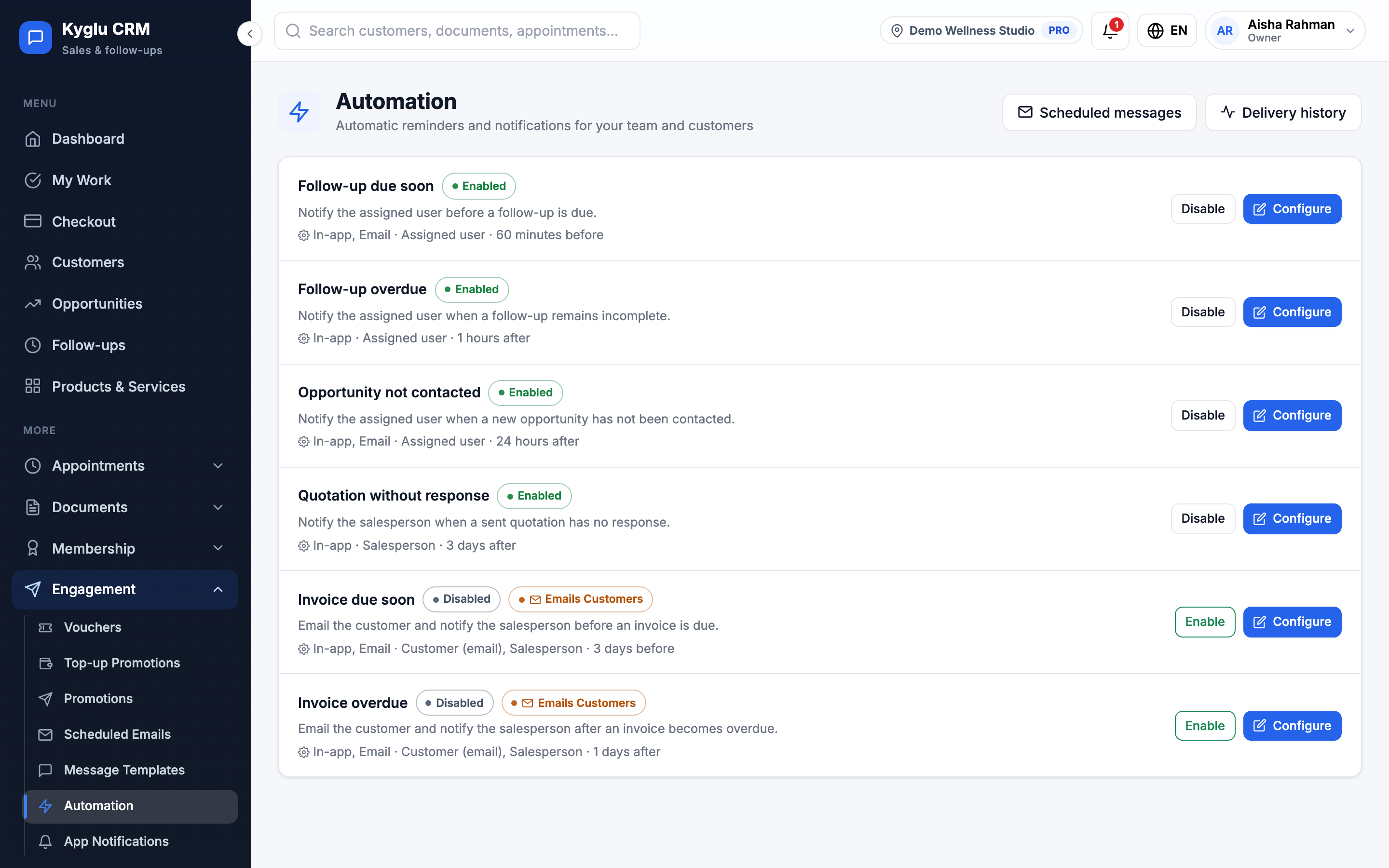
The rules
Kyglu CRM comes with a fixed set of rules. You can't write your own, but you can turn each rule on or off and change its timing, channels and message.
| Rule | What it does | Default timing | On by default? |
|---|---|---|---|
| Follow-up due soon | Notifies the assigned staff member before a follow-up is due | 60 minutes before | Yes |
| Follow-up overdue | Notifies the assigned staff member when a follow-up is still not done | 1 hour after | Yes |
| Opportunity not contacted | Notifies the assigned staff member (or the Owner) when a new opportunity hasn't been contacted | 24 hours after | Yes |
| Quotation without response | Notifies the salesperson (or the Owner) when a sent quotation has no answer | 3 days after it's sent | Yes |
| Invoice due soon | Emails the customer and notifies the salesperson before an invoice is due | 3 days before | No |
| Invoice overdue | Emails the customer and notifies the salesperson after an invoice is overdue | 1 day after | No |
Rules that email customers are marked Emails customers, and are off until you turn them on.
Configure a rule
- Click Configure on a rule.
- Tick Rule enabled.
- Choose the Channels: In-app notifications for your team, and Email.
- Set the Timing, in minutes, hours or days before or after.
- Edit the Email subject and Message body. Click a placeholder to insert details such as the customer's name or the invoice number.
- Click Send a test email to check it. Tests go only to members of your company.
- Click Save changes.
Customers are only ever contacted by email. Your team gets in-app notifications, and email where the rule allows it.
Automation never sends WhatsApp messages. To remind a customer on WhatsApp, use a payment reminder template and send it yourself.
Timing
Due dates count from the end of that day in your company's timezone. An invoice due today isn't overdue until the day is over.
Each reminder is sent once. If the situation changes before it's sent, for example the invoice is paid or the follow-up is done, the reminder is dropped.
Delivery history
Delivery history lists every notification and email your rules, scheduled emails and appointment reminders have queued. Filter by status, rule or channel.
If a delivery has failed, click Retry to send it again.