Quotations
A quotation is a price offer you send a customer before they buy. When the customer agrees, you turn it into an invoice with one click.
Who can see it: Everyone. Anyone can create, edit and send quotations. Deleting one, or choosing a different salesperson, needs the Owner, an Admin, or Staff with the Sales & documents permission.
Open it from Documents → Quotations in the menu.
Create a quotation
- Click New Quotation.
- Choose the Customer.
- Check the Date and set Valid until. Use Today, In 7 days or In 30 days for a quick date.
- Add items. Tap a product, service or package under Quick add, tap it again to increase the quantity, or add a custom item with your own name and price.
- Apply any discount, promotion or voucher in the Summary. A manual discount needs a reason.
- Add Notes if needed. They're printed on the quotation.
- Click Save Draft.
Salesperson is the team member credited with the sale. Staff without the Sales & documents permission are always credited themselves.
Tax is added at the rate set in Company Settings.
Send it to the customer
Open the quotation and use the Send via WhatsApp panel:
- Choose a WhatsApp message template. The message includes a link to the quotation.
- Check the preview, and click Edit to change the wording if your template allows it.
- Click Send WhatsApp. WhatsApp opens with the message ready, and you press send.
Instead of a link, you can tick Send as a PDF file to share the PDF straight into the chat.
The first time you send a draft, its status changes to Sent.
Under Share & export you can also copy the Public link, open it, or Download PDF. The PDF is in the customer's language by default. You can pick another under PDF language.
Customers can view the quotation online but can't accept it there. They contact you, and you record their answer.
Record the customer's answer
Once a quotation is Sent:
- Click Accept when the customer agrees. The quotation shows "Accepted — ready to convert to an invoice".
- Click Reject if they decline.
Convert to an invoice
Open an accepted quotation and click Convert to invoice. Kyglu CRM creates an invoice with the same customer, items, discounts and salesperson, and the quotation's status becomes Converted. Each quotation can be converted only once.
See Invoices for what to do next.
Statuses
| Status | Meaning |
|---|---|
| Draft | Saved but not sent yet |
| Sent | Sent to the customer, waiting for an answer |
| Accepted | The customer agreed. Ready to convert. |
| Rejected | The customer declined |
| Converted | Turned into an invoice |
A draft or sent quotation that's past its Valid until date is marked Expired in the list.
Edit or delete
- You can Edit a quotation while it's a draft or sent. After it's accepted, rejected or converted, the figures are locked.
- Only drafts that haven't been converted can be deleted.
Deleting a quotation can't be undone.
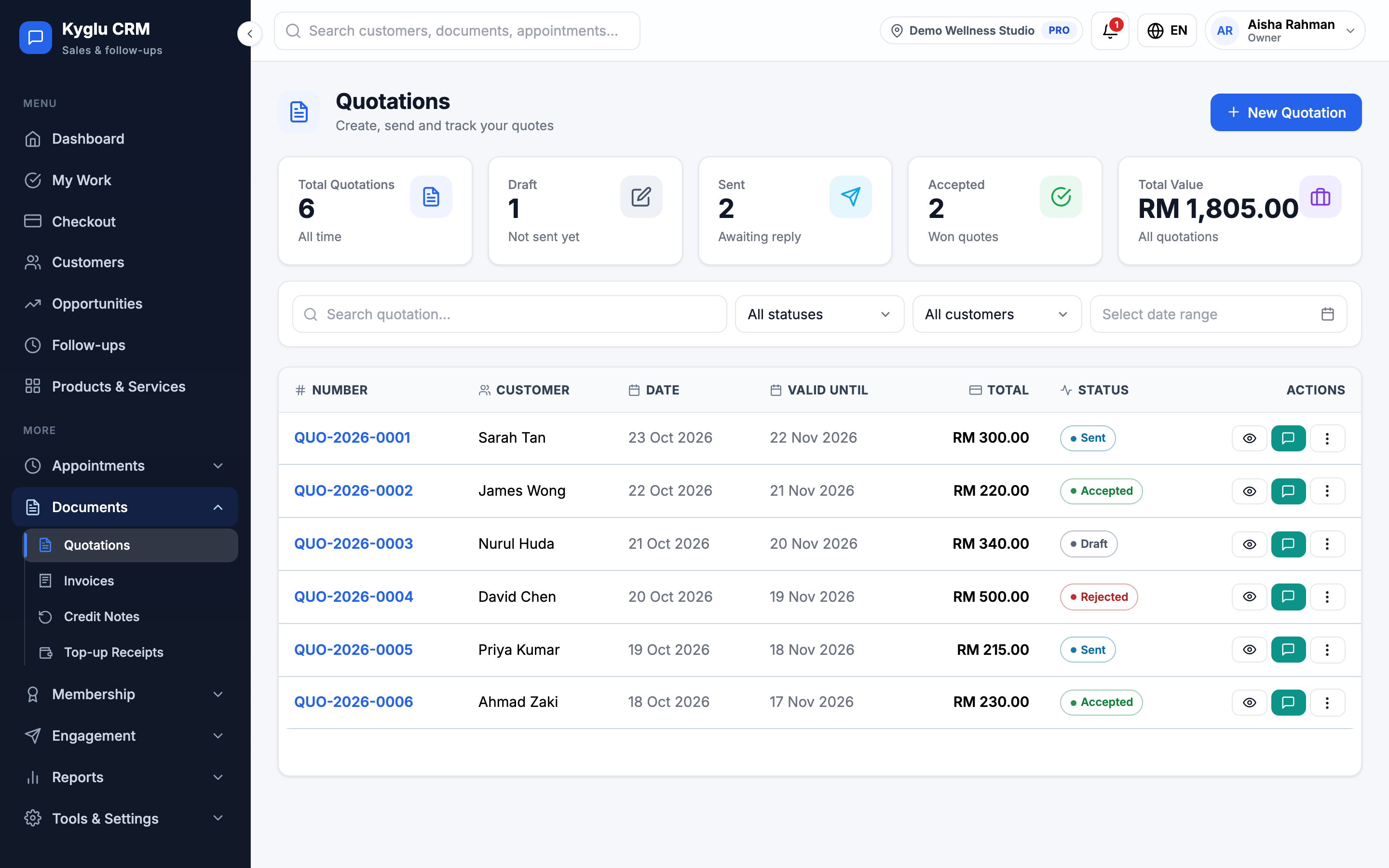
The quotation list
The cards at the top show your total quotations, drafts, quotations waiting for a reply, accepted quotations and their total value. Search by number or customer, or filter by status, customer and date.