Invoices
An invoice is a bill for what a customer bought. When it's paid, Kyglu CRM records the payment, issues a receipt, adds loyalty points and gives the customer any packages on it.
Who can see it: Everyone. Anyone can create, edit, send and mark invoices paid. Deleting a draft, choosing a different salesperson or issuing a refund needs the Owner, an Admin, or Staff with the Sales & documents permission.
Open it from Documents → Invoices in the menu. For a quick sale at the counter, Checkout is faster.
Create an invoice
You can create an invoice in three ways:
- Click New Invoice on the Invoices page.
- Convert an accepted quotation.
- Bill an appointment from the calendar. The appointment's service and staff member are filled in for you.
To fill in a new invoice:
-
Choose the Customer.
-
Check the Date and set the Due date. Use Today, In 7 days or In 30 days for a quick date.
-
Add items under Quick add, or add a custom item. For services you can choose which staff member performed each one.
-
In the Summary, apply any discount:
Discount How it works Promotion Tier and birthday offers the customer qualifies for are applied automatically, marked Auto. Click Don't apply this offer to remove one. Manual discount Enter an amount and a reason. A manual discount replaces member offers. Voucher Enter a code, or click Pick from active codes Points redemption Click Use points and enter the amount to redeem from the customer's points -
If the customer paid a booking deposit, Kyglu CRM offers to use it. Click Use on this invoice to take it off the amount due.
-
Click Save Draft, or Save & mark paid if the customer is paying now.
Send it to the customer
Open the invoice and use the Send via WhatsApp panel, the same way as for quotations. Sending a draft changes its status to Sent.
To chase an unpaid invoice, choose a Payment reminder template in the panel, or click Remind in the invoice list.
Mark an invoice paid
- Open the invoice and click Mark paid.
- In Collect payment, tap how the customer paid. To split the bill, tap more than one method and enter the amount for each. If the customer has a wallet balance, you can pay part or all of it from Stored value.
- Add a Reference if you need one, for example a transfer number.
- Click Confirm payment.
When an invoice is paid, Kyglu CRM:
- issues a payment receipt (click View receipt), if receipts are turned on in Company Settings
- adds loyalty points for the customer
- gives the customer any packages on the invoice
- asks you to take sold products off your stock, if you track stock
The payment methods you see are set up in Payment Methods.
Statuses
| Status | Meaning |
|---|---|
| Draft | Saved but not sent or paid |
| Sent | Sent to the customer, waiting for payment |
| Overdue | Sent, and past its due date |
| Paid | Paid in full |
| Refunded | Paid, then partly or fully refunded with a credit note |
| Cancelled | Voided. It can no longer be paid. |
Edit, void or delete
- You can Edit an invoice until it's paid or cancelled.
- To void an invoice, open More actions and click Void invoice. Vouchers used on it become available again.
- Drafts that didn't come from a quotation can be deleted from More actions → Delete invoice.
Voiding and deleting can't be undone. A paid invoice can't be voided or edited. To give money back, issue a credit note.
The invoice list
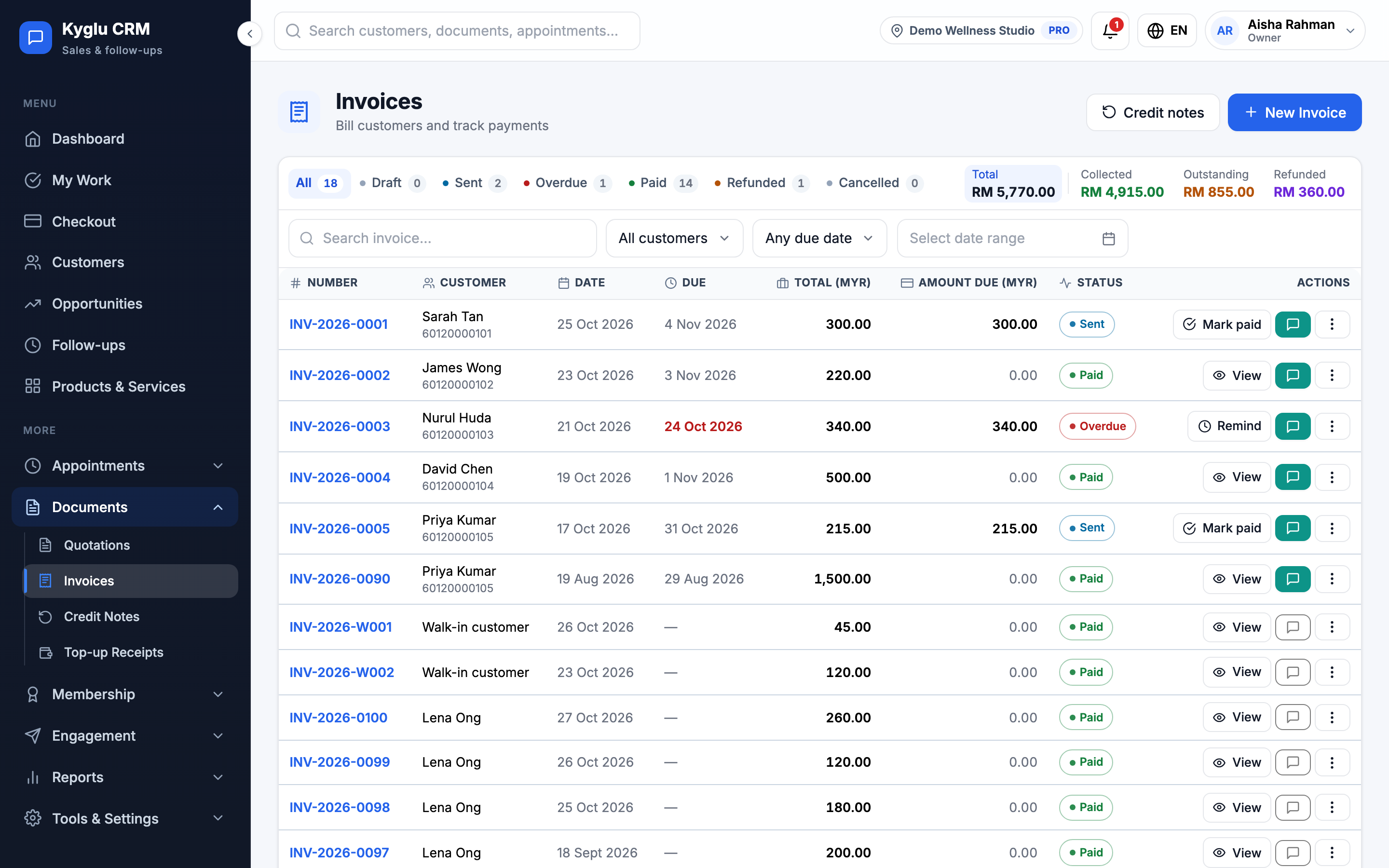
The tabs at the top filter by status, and the summary shows the total, collected, outstanding and refunded amounts. You can also search by invoice number, customer name or phone, and filter by customer, date or due date.
From the list, click Mark paid or Remind on an unpaid invoice without opening it.
Branches
When your company has more than one branch, each invoice records the branch it belongs to. You don't choose it: an invoice for appointments counts at the appointments' branch, and any other invoice counts at the branch you're working at. Payments always count at their invoice's branch. See Branches.