Credit Notes
A credit note records a refund against a paid invoice. It's the only way to give money back on an invoice, and it has its own number and date.
Who can see it: Everyone can view credit notes. Issuing one needs the Owner, an Admin, or Staff with the Sales & documents permission.
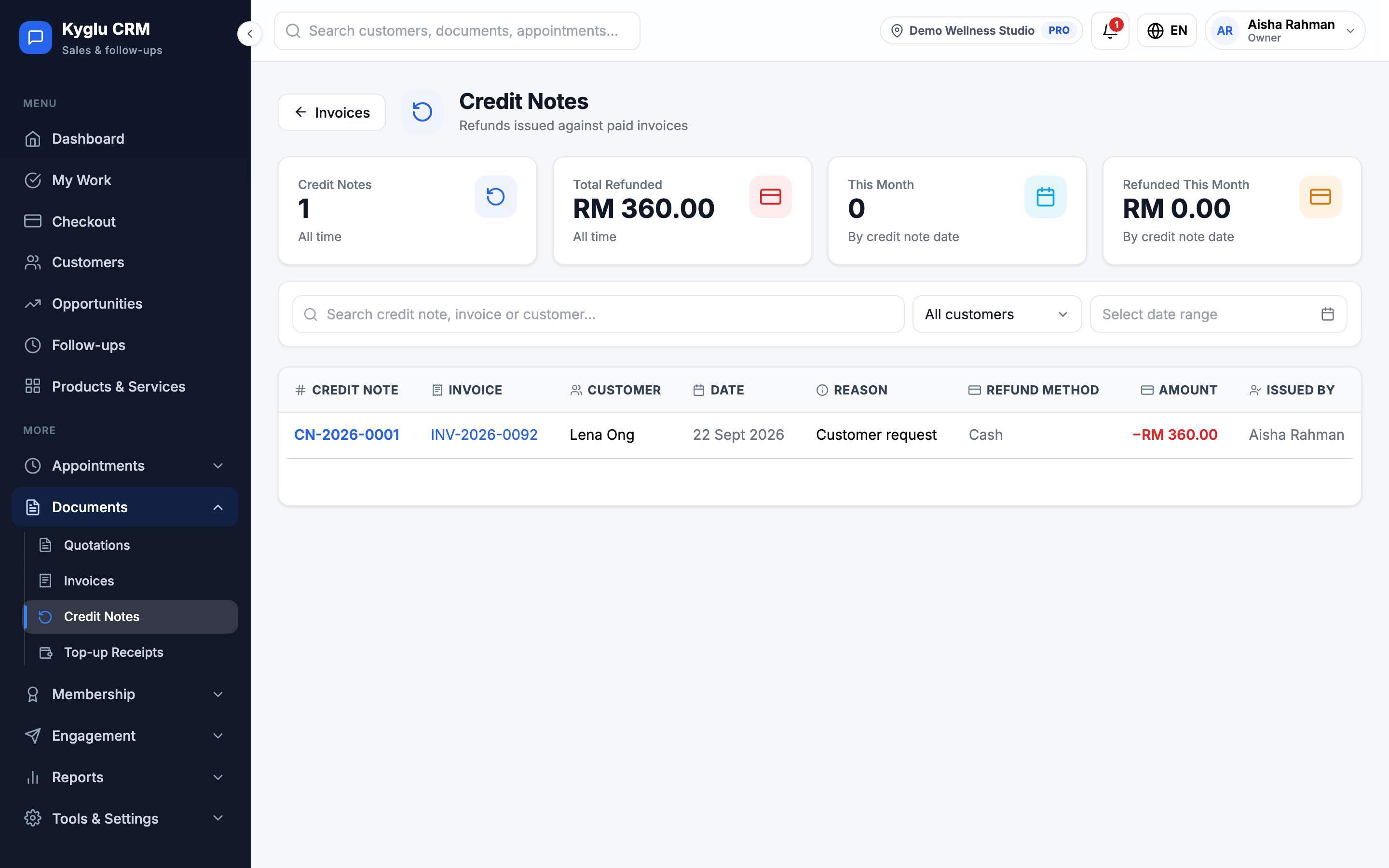
Open the list from Documents → Credit Notes in the menu.
Issue a credit note
-
Open the paid invoice and click Refund / Credit note.
-
Under Invoice lines, tick the lines to refund and set the Refund qty. The invoice's discount and tax are shared out across the lines.
-
To refund an amount that doesn't match a line, for example goodwill or a package with sessions already used, click Add custom line and enter a Description and Amount.
-
Fill in Refund details:
Field Description Credit note date The date the refund counts in reports Reason Customer request, Service issue, Billing error, Goodwill or Other Reason notes What happened. Shown on the credit note. Refund method How the money goes back: Cash, Bank transfer, Card, E-wallet or Other Reference A transaction or receipt number Refund to stored value Puts part of the refund back in the customer's wallet, if they paid from it Notes Optional, printed on the credit note -
Check the Credit note summary and click Issue credit note.
You can refund an invoice in several credit notes, but never more than its total. For a walk-in sale, the refund goes back through the payment methods the sale was paid with.
Credit notes can't be edited or deleted. If you make a mistake, issue a new invoice to correct it.
What happens after a refund
| Partial refund | Full refund | |
|---|---|---|
| Points earned on the invoice | Taken back in proportion | Taken back |
| Points spent on the invoice | Kept as spent | Returned to the customer |
| Vouchers used on the invoice | Stay used | Available again |
| Packages on refunded lines | Voided if no sessions were used | Voided if no sessions were used |
| Customer tier | Recalculated | Recalculated |
A package with sessions already used can't be refunded as a line. Use a custom amount instead.
The invoice stays Paid and shows Partially refunded or Refunded. In sales reports, the refund counts in the period of the credit note date, not the original sale.
Send it to the customer
Open the credit note to Download PDF or send it with WhatsApp click-to-chat, the same way as an invoice.
The credit note list
The cards show the number of credit notes and the total refunded, all time and this month. Search by credit note number, invoice number or customer, or filter by customer and date.