Products & Services
Products & Services is your catalogue: everything you sell. Anything here can be picked directly on a quotation, invoice or appointment.
Who can see it: Everyone. Staff see it read-only. Adding, editing and importing needs the Owner, an Admin, or Staff with the Catalog permission.
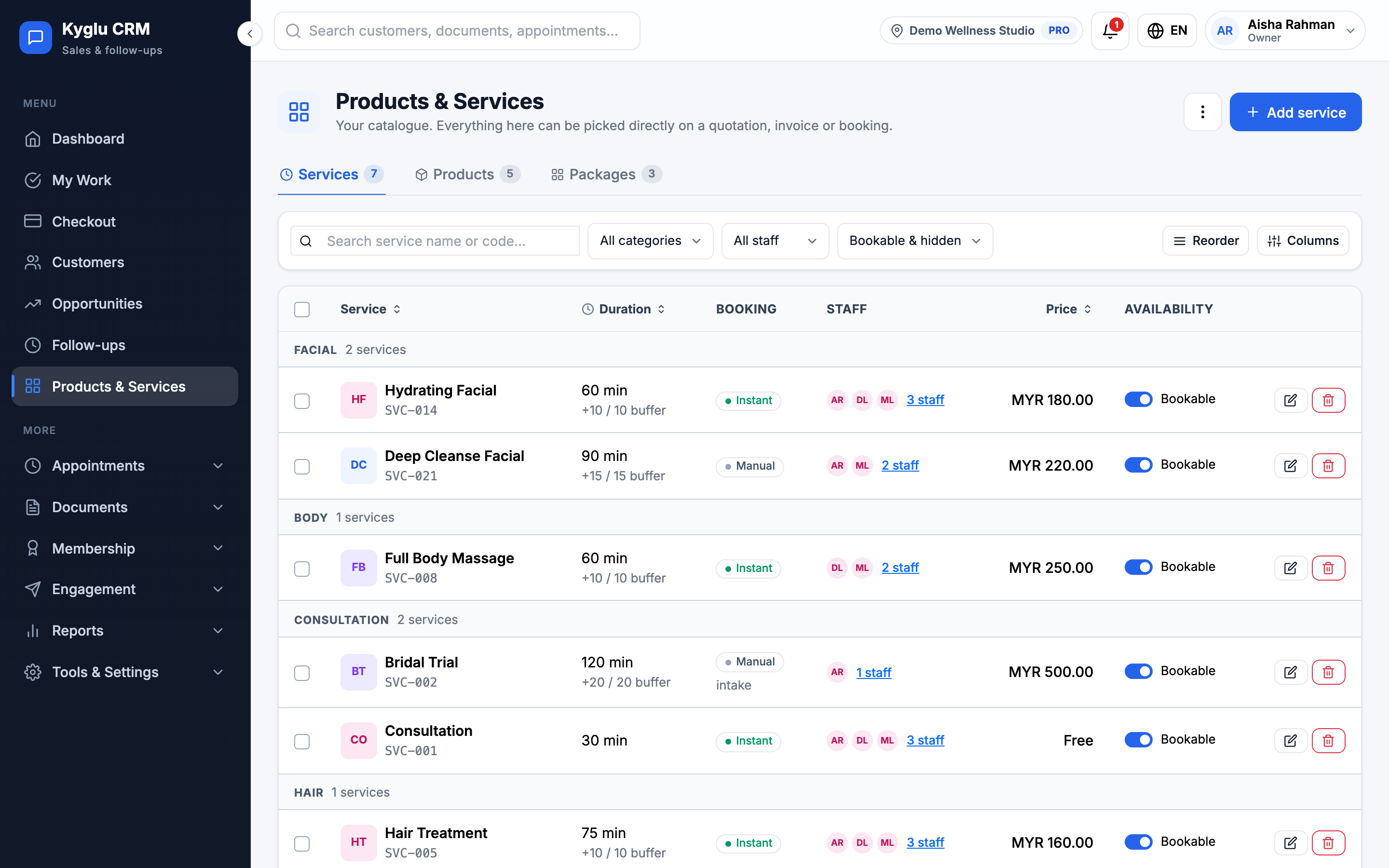
The page has three tabs: Services, Products and Packages. Packages are covered in Packages.
Services
Services are what customers book, such as a facial or a haircut.
To add one, open the Services tab and click Add service. Only the name and duration are required. A preview on the right shows how the service looks in the Customer App.
| Field | Description |
|---|---|
| Name | For example "Hydrating Facial" |
| Category | Groups services, for example "Facial" |
| Code | Leave blank to generate one |
| Description | Shown on the customer's booking page |
| Duration and price | Choose One option or Several options, for example 60 min and 90 min at different prices. Leave the price blank for a free service. |
| Buffer time | Time blocked Before and After the service, for example for clean-up. Customers don't see it. |
| Staff who can perform this | Only these staff can be booked for it. Staff who join later have to be added here. |
| Bookable online | Customers can book it themselves in the app. Turn it off to keep it in-store only. |
| Booking deposit | Ask for a deposit when booked in the app. See Booking Setup. |
| Let customers leave the option for the visit | For services with several options: customers can choose "not sure yet", and staff pick the option at the visit |
| Active | An inactive service stays in your records but can't be sold, booked or added to a package |
If no staff are selected for a service, customers can't book it in the app.
Products
Products are items you sell, such as shampoo or skincare.
To add one, open the Products tab and click New product. Only the name and retail price are required.
| Field | Description |
|---|---|
| Name | For example "Hydrating shampoo" |
| Size | Volume or count, for example "500 ml" |
| Code and barcode | Optional. You can scan a barcode in. |
| Description | Ingredients, how to use it or selling points |
| Cost | What you pay for it. Customers never see this. Used to work out your Margin. |
| Retail price | What customers pay |
| Supplier | Who you buy it from |
| Current stock / Opening stock | Leave blank if you don't track stock for this product |
| Reorder at | You're reminded when stock reaches this level |
| Par level | How many make a full shelf |
| On sale | Can be picked when billing. Taking it off sale keeps its records and stock. |
Changing a product or service doesn't affect documents you've already issued.
Stock
If you enter stock for a product, Kyglu CRM tracks it. Every change is recorded, so you can always see why the number is what it is.
The product list shows stock levels as In stock, Low stock or Out of stock. Filter by stock level to find what needs reordering.
From the Stock menu on the product list:
| Action | When to use it |
|---|---|
| Receive | A delivery arrived. Add each product and how many came in, then click Record delivery. |
| Record usage | Stock was used up, for example in a treatment. Add a note if you like. |
| Stock take | You've counted the shelf. Enter the counts and click Save counts. |
| Stock history | See every movement for a product: when, what, the change, the balance and who did it |
Stock also goes down when a sale is recorded (you're asked to confirm), and can be recorded after an appointment is completed.
If a product shows Below zero · recount, the recorded stock is probably wrong. Do a stock take to correct it.
Import a catalogue
To add many services or products at once:
- Choose the Services or Products tab.
- Open the ⋮ menu and choose Import.
- Either paste a list (one item per line, straight from a spreadsheet), or upload an
.xlsxor.csvfile. Click Download template for a file with the right columns. - If you uploaded a file, match each column to a field.
- Click Next: review. Rows with missing or invalid values are listed and will be skipped.
- Click Import.
Items already in your catalogue, or repeated in the file, are skipped.
Export
Open the ⋮ menu and choose Export to download the current tab as a file.