Opportunities
Opportunities are possible sales you're working on, such as an enquiry about a package or a quote you've sent. You move each opportunity through stages until it's won or lost.
Who can see it: Everyone. Staff can edit the opportunities assigned to them. The Owner, Admins and Staff with the Sales & documents permission can edit and delete any opportunity.
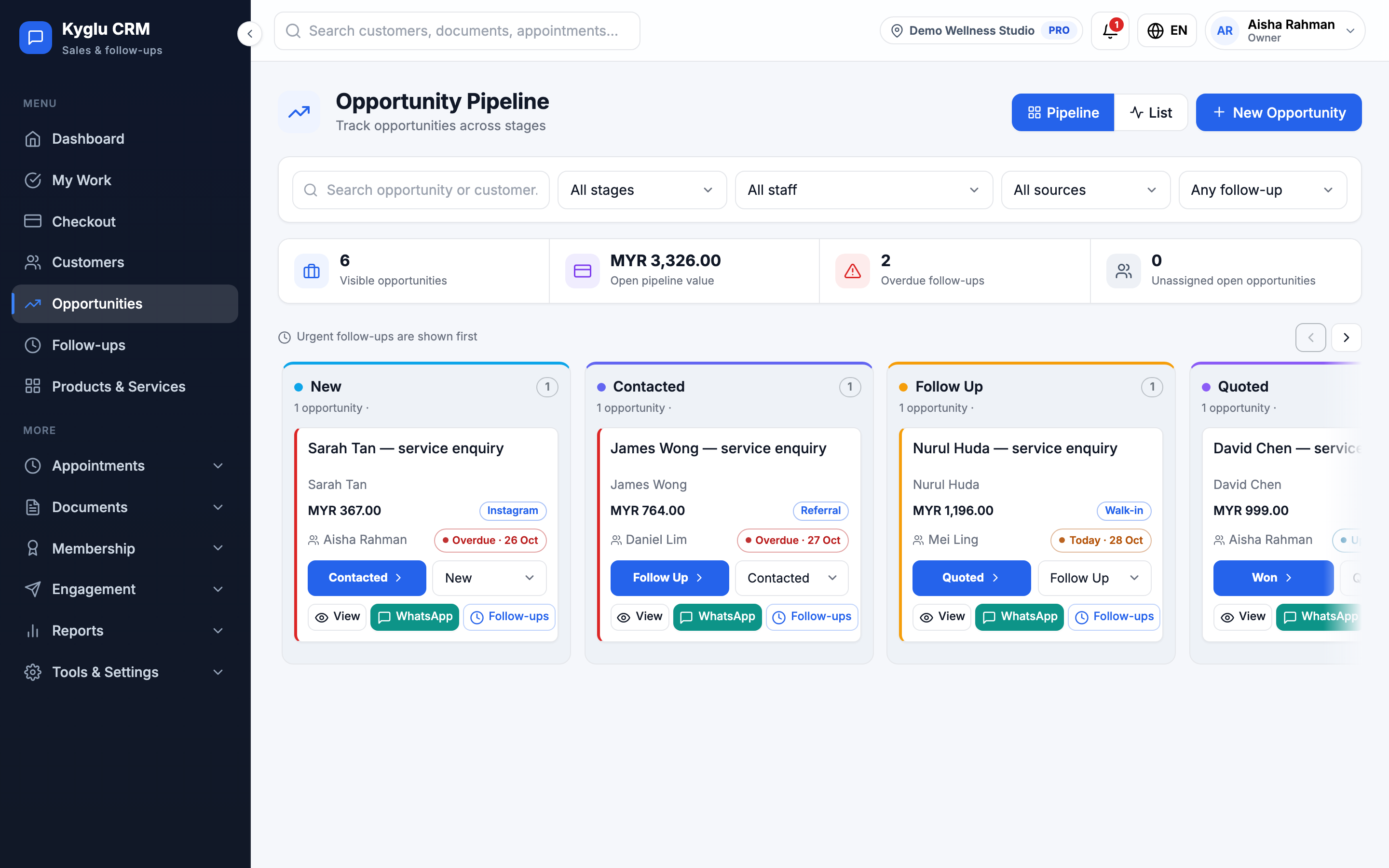
Stages
| Stage | Meaning |
|---|---|
| New | Just came in, not contacted yet |
| Contacted | You've been in touch |
| Follow Up | Waiting on a next step |
| Quoted | You've sent a quotation |
| Won | The customer bought |
| Lost | It didn't happen |
Won and Lost are final: once an opportunity is closed, it can't be moved to another stage.
Add an opportunity
-
Open Opportunities and click New Opportunity. You can also start from a customer's profile with Create opportunity.
-
Fill in the details:
Field Description Title A short description, for example "Facial package enquiry" Customer Who it's for Stage Where it starts. Usually New. Value How much it's worth if won Source Where it came from, for example Facebook or Referral Assigned staff Who is working on it Next follow-up When to contact them next. This creates a follow-up. Remark Any notes -
Click Save Opportunity.
Pipeline and list views
Switch between two views at the top of the page:
- Pipeline: a board with one column per stage, showing the number and value of opportunities in each. Opportunities with urgent follow-ups are shown first.
- List: a table with age, last activity, owner and next follow-up. The open pipeline total leaves out won and lost opportunities.
The Pipeline snapshot shows visible opportunities, open pipeline value, overdue follow-ups and unassigned open opportunities.
Filter by stage, source and follow-up status (Due today, Overdue, Upcoming, No follow-up), or search by opportunity or customer.
Move an opportunity forward
Open an opportunity and use Move stage, or click Advance to [next stage].
The opportunity page also shows:
- Time in stage: how long it has been at its current stage
- Follow-ups: scheduled and done follow-ups, with a Schedule button
- Activity Timeline: everything that has happened, including stage history
- WhatsApp buttons to message the customer using a template
Close an opportunity
- Mark Won when the customer buys.
- Mark Lost when it isn't going to happen. Choose a Reason, and add an Internal note if you like. The customer never sees it.
Recording why opportunities are lost powers the Sales Funnel report.
Delete an opportunity
Open the opportunity and choose Delete opportunity. You need the Owner, an Admin, or the Sales & documents permission.