Follow-ups
A follow-up is a reminder to contact a customer at a set time, by WhatsApp, phone, email or in person. Follow-ups keep anyone from being forgotten.
Who can see it: Everyone. Staff can update follow-ups for their own opportunities. The Owner, Admins and Staff with the Sales & documents permission can manage all of them.
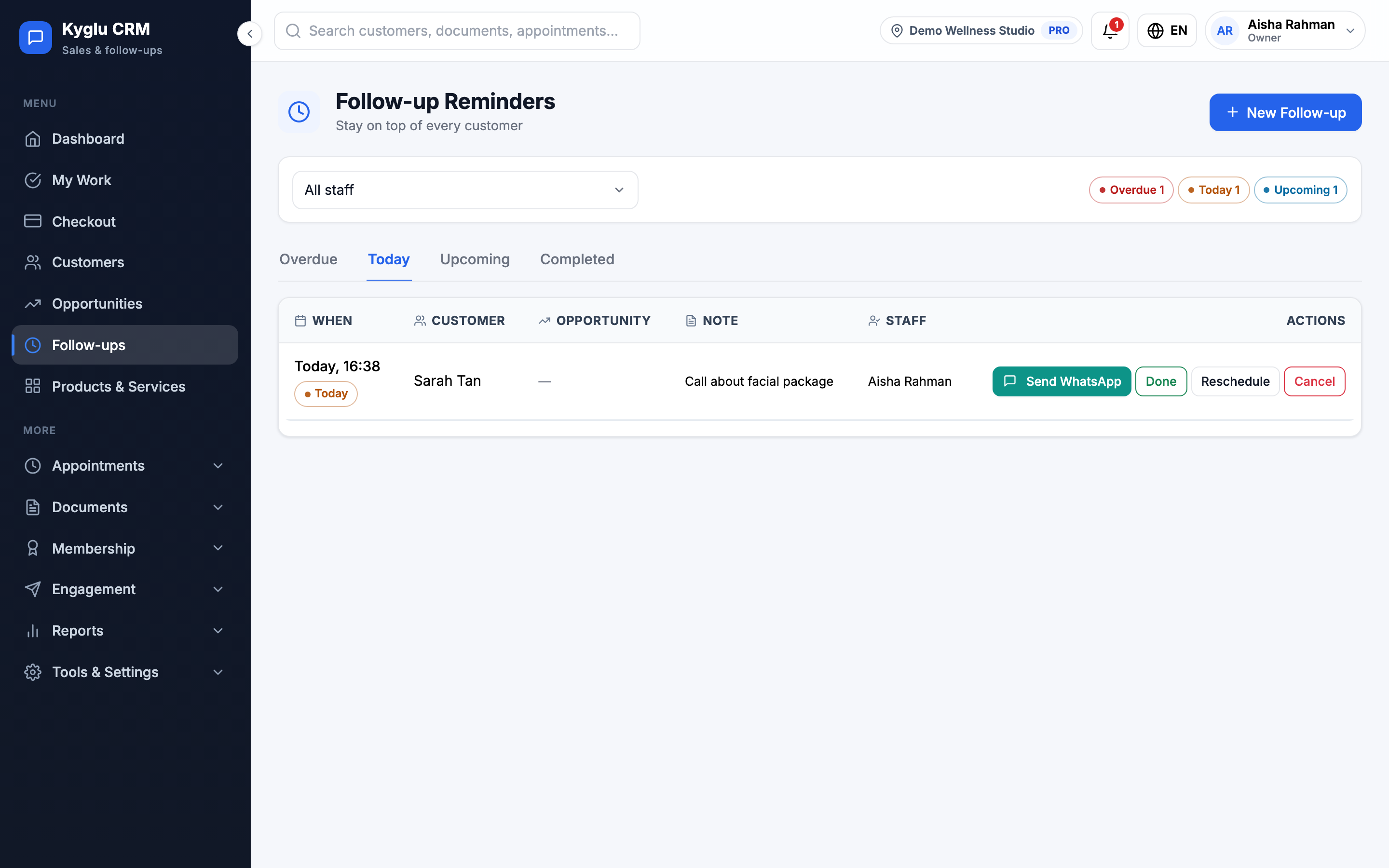
Add a follow-up
-
Open Follow-ups and click New Follow-up. You can also add one from a customer, an opportunity, the dashboard or My Work.
-
Fill in the details:
Field Description Opportunity Optional. Choosing one fills in the customer automatically. Customer Who to contact Follow-up method WhatsApp, Phone call, Email, In-person meeting or Other Date & time When. Quick picks: Later today, Tomorrow, In 3 days, Next week. Assigned staff Who will do it Note What to check in on, for example "confirm quotation feedback" -
Click Save.
The follow-up list
Follow-ups are split into tabs:
| Tab | What it shows |
|---|---|
| Overdue | Past their time and not done |
| Today | Due today |
| Upcoming | Due later |
| Completed | Done, with whether they were on time, early or late |
The top of the page shows how many are due today, how many are due in the next 7 days, and how many done follow-ups were Completed on time.
Work through follow-ups
For each follow-up you can:
- Send WhatsApp: opens WhatsApp with the customer. See WhatsApp.
- Done: mark it complete and record the outcome
- Reschedule: choose a new date and time
- Cancel: if it's no longer needed
Record the outcome
When you click Done, the Complete follow-up form asks:
| Field | Options |
|---|---|
| Outcome | Booked, Considering, No answer, Call back later, Not interested, Invalid number, Other |
| Contact channel | WhatsApp, Call, Other |
| Note | What happened |
| Next follow-up | Optional. Schedule the next contact straight away. |
Click Complete to save.
If the customer didn't answer, set a Next follow-up before you complete the current one. That way the customer stays on someone's list.