Customer Profiles
The Customers page is your customer directory. Each customer has a profile that shows everything you have with them: opportunities, follow-ups, quotations, invoices, appointments and packages.
Who can see it: Everyone. Anyone can add and edit customers. Deleting a customer needs the Owner, an Admin, or Staff with the All customers permission.
In the Wellness / Beauty / Spa industry, customers are called Clients throughout the app.
Add a customer
- Open Customers and click New Customer.
- Enter at least a Name. Everything else can be added later.
- Click Save customer. The customer's profile opens, where you can book an appointment or sell a package next.
| Field | Description |
|---|---|
| Name | What the customer is called. The only required field. |
| Phone | Used for WhatsApp. Choose the country code and leave out the leading 0. |
| Used for appointment reminders, scheduled emails and documents | |
| WeChat ID | Optional |
| Birthday | Used for birthday offers. Tick Year unknown if you only know the day and month. |
| Gender | Optional |
| Language | The language used for WhatsApp reminders, emails and shared documents. Defaults to your company language. |
| Source | Where they came from, for example Walk-in, Friend referral or Facebook |
| Assigned staff | The team member who follows up with this customer |
| Home branch | For follow-up and filtering. Every branch still sees the customer. |
| Outstanding debt | An old balance not yet settled, for example from your previous system |
| Tags | Labels for grouping customers. Create a new tag as you type. |
| Notes | Staff-only notes such as allergies or preferences |
Invite to the app after saving: when the customer has a phone number, you can tick this to invite them to the Customer App. Customers already on the app get the invitation straight away. Others see it when they sign up with that number.
Enter phone numbers with the right country code. WhatsApp needs the full international number, and Kyglu CRM warns you when a number looks like it's missing one.
Add many customers at once
Click Bulk add on the Customers page. There are two ways:
- Paste text: one customer per line, separated by commas: name, phone, email, WeChat, birthday. Only the name is required. Birthdays can be
1990-01-23,23/01/1990or just23/01. - Upload Excel/CSV: upload an
.xlsxor.csvfile with a header row, then match each column to a field. Click Download import template for a ready-made file.
Click Preview to check the list, then create the customers. Rows with a phone number that already exists, or that repeats in the file, are skipped and listed.
Find customers
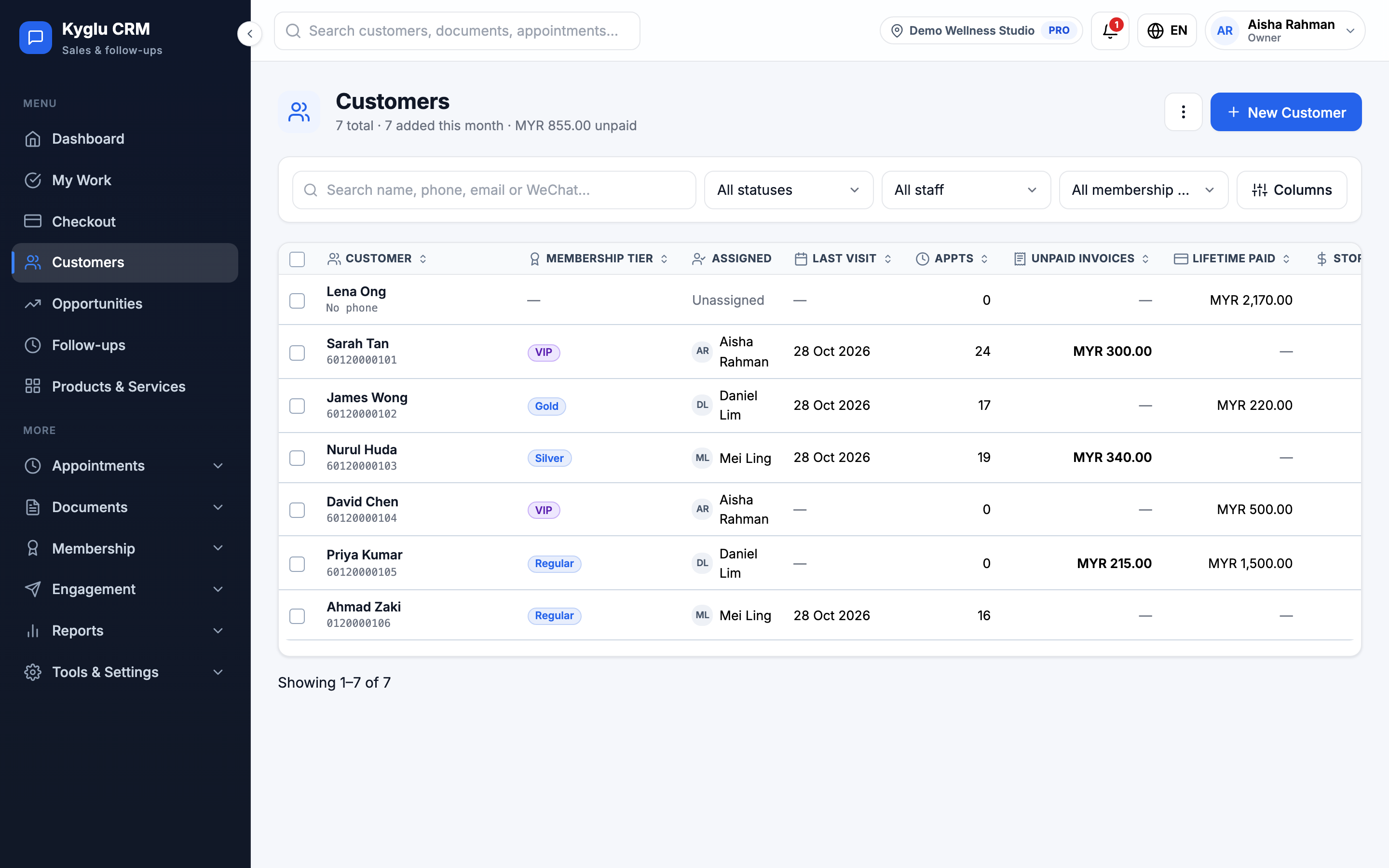
- Search by name, phone, email or WeChat.
- Filters narrow the list by tier, branch, assigned staff and more. Click Clear all to reset.
- Columns lets you choose which columns are shown.
The top of the list shows a summary: total customers, how many were added this month and how many have unpaid invoices.
Bulk actions
Tick customers in the list to:
| Action | What it does |
|---|---|
| Assign owner | Sets the assigned staff on all selected customers, replacing the existing one |
| Add tag | Adds one tag to all selected customers. Existing tags are kept. |
| Export selected | Downloads the selected customers |
| Delete | Deletes the selected customers. Anyone with invoices, appointments or package history is kept. |
The customer profile
Click a customer to open their profile. The header shows their contact details, tier, points, lifetime paid and outstanding debt, plus WhatsApp buttons.
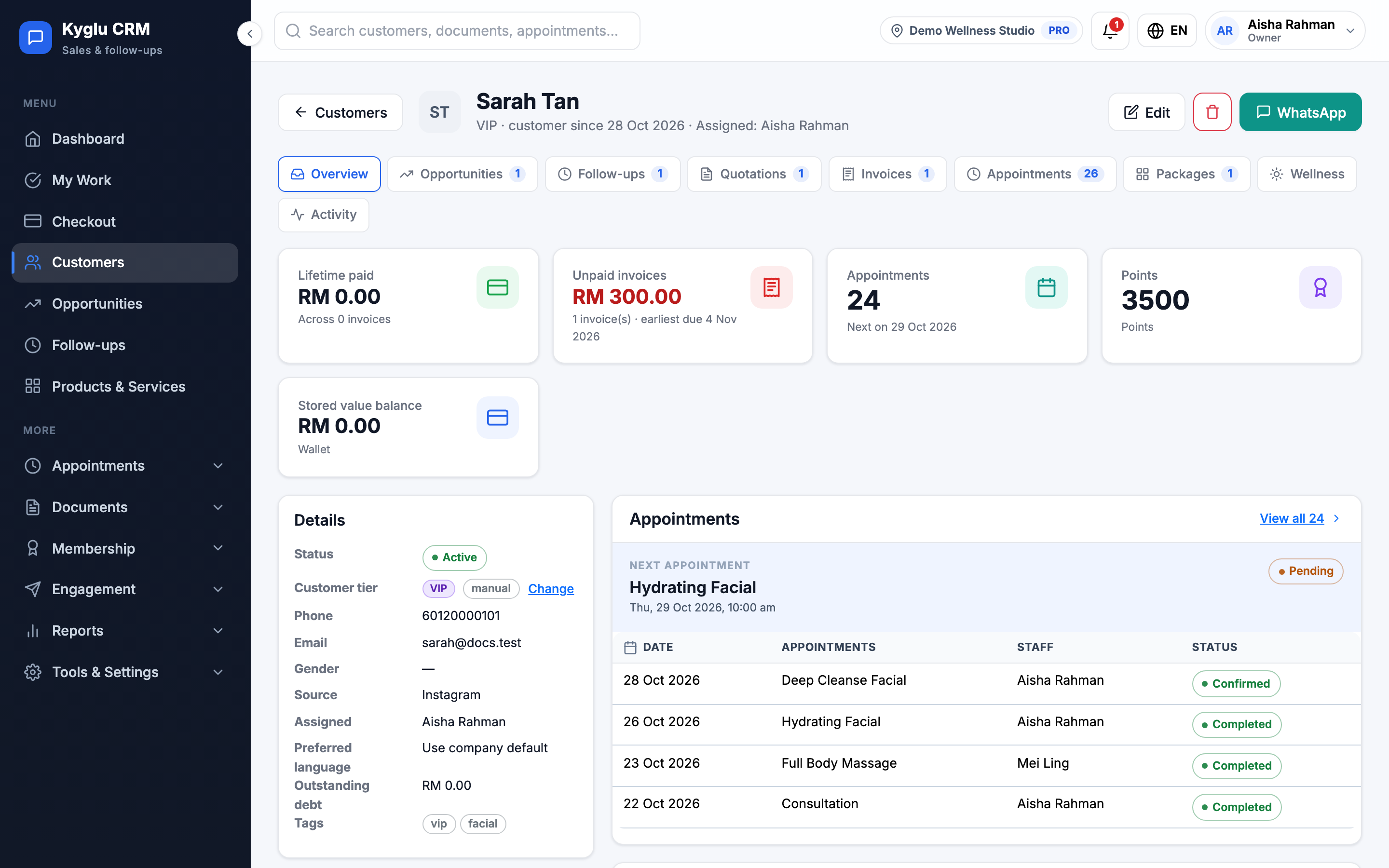
The tabs:
| Tab | What it shows |
|---|---|
| Overview | Key figures, next appointment, next follow-up, recent documents and recent activity |
| Opportunities | Their opportunities |
| Follow-ups | Their follow-ups |
| Quotations / Invoices | Their documents |
| Appointments | Past and upcoming appointments |
| Packages | Packages they've bought and sessions left |
| Wellness | Wellness / Beauty / Spa only: the client's wellness profile |
| Activity | A timeline of everything that happened with this customer |
From More actions you can Create opportunity, Create follow-up, Schedule email or start a New appointment.
Message a customer on WhatsApp
On the profile, click Open WhatsApp chat to start a blank chat. Under Quick messages, you can draft a greeting, follow-up, appointment reminder or payment reminder from your templates. See WhatsApp.
Stop automated WhatsApp reminders
If a customer asks not to receive automated WhatsApp reminders, edit the customer and turn off WhatsApp reminders.
Delete a customer
Open the customer, choose delete from the actions menu and confirm.
Deleting a customer can't be undone. Customers with invoices, appointments or package history can't be deleted, so their records stay complete.