Managing Your Subscription
The Owner manages the subscription on the Billing page. Payments are processed by Stripe. Kyglu CRM never sees or stores your card details.
Who can see it: Owner only. Open it from Tools & Settings → Billing in the menu.
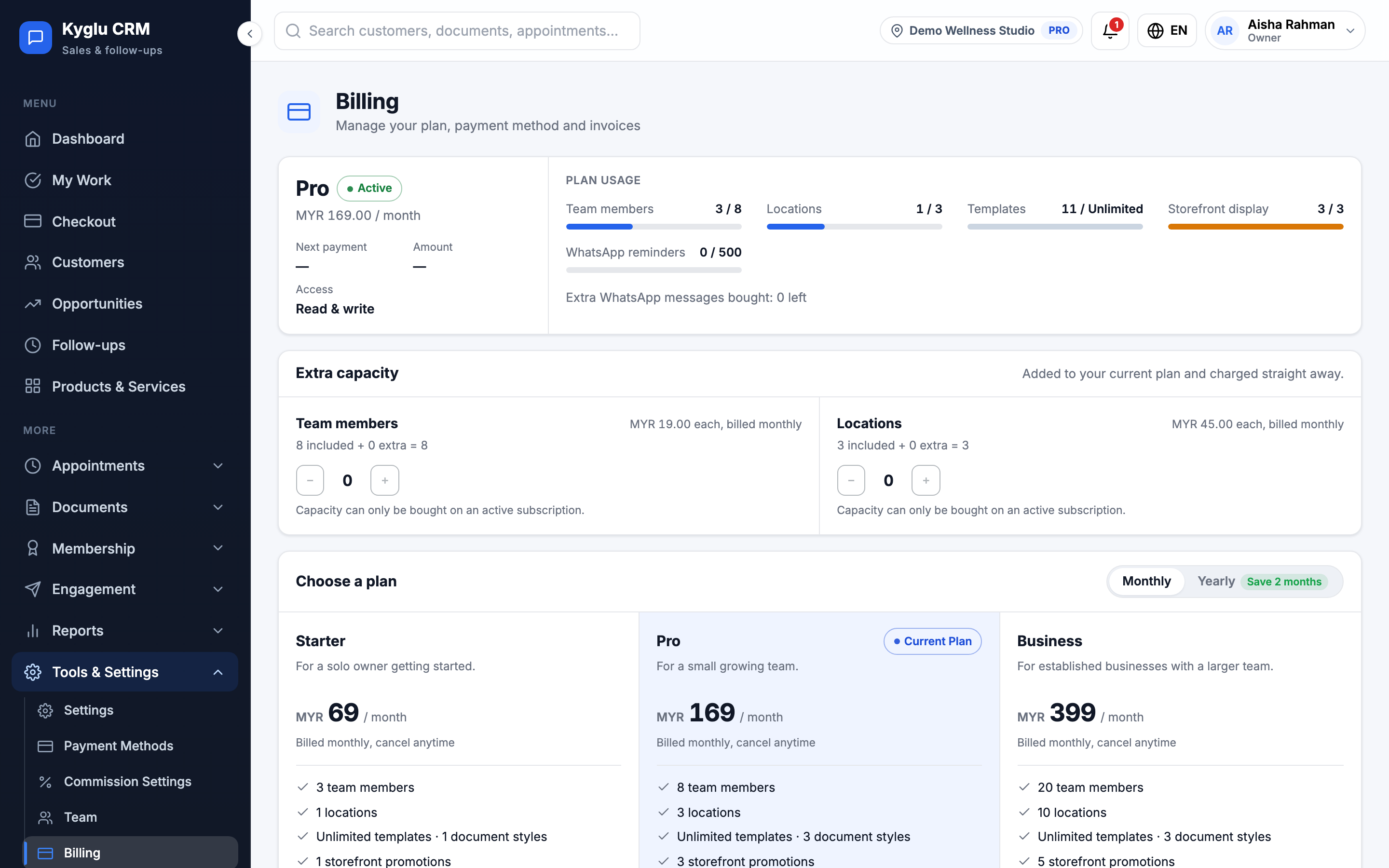
Subscribe
- Open Billing.
- Under Choose a plan, pick Monthly or Yearly.
- Click Subscribe on the plan you want. Kyglu CRM shows what you're paying for and whether anyone would lose access.
- Click Continue to payment and pay on Stripe's secure checkout page.
You return to Kyglu CRM once payment is done. It can take a moment for Stripe to confirm your subscription.
Change plan
Click Upgrade to, Downgrade to or Switch to yearly/monthly billing on a plan card. Kyglu CRM shows the price before you confirm.
| Change | When it takes effect |
|---|---|
| Upgrade, or monthly to yearly | Straight away. You pay the difference for the rest of the current period. |
| Downgrade, or yearly to monthly | At the end of the period you've paid for. Nothing is charged today and nothing is refunded. |
A downgrade waiting to take effect is shown under Scheduled change. Click Cancel this change to keep your current plan.
Add team members or locations
Under Extra capacity, use Add one or Remove one to change how many extra team members or locations you have, then click Update.
- Adding is charged straight away, for the rest of the current period.
- Removing takes effect at the end of the period. You keep what you have until then.
Extra capacity needs an active subscription. It isn't available during the free trial.
If you're over your plan's limits
If your plan or extra capacity goes down, you may have more team members or locations than your plan allows. Nothing is deleted, but some people lose access until you add capacity:
- The Owner always keeps access.
- Next come the members the Owner chose to keep on the Team page, then everyone else, oldest first.
- Members who lose access see a No licence page.
Before any change that would lock people out, Kyglu CRM tells you how many and from when. Buying the capacity back restores access straight away.
Payment method and invoices
- Payment method shows the card on file. Click Change, or Manage billing, to update your card, billing email, tax ID or billing address in Stripe.
- Billing history lists your Kyglu CRM invoices. Click View to download an invoice and receipt, or to pay an open one.
Cancel your subscription
- On Billing, click Cancel subscription.
- Choose why you're cancelling and add any comment.
- Click Cancel subscription to confirm.
Your account keeps working until the end of the period you've paid for. After that it becomes read-only: your records stay, and subscribing again restores editing.
Changed your mind? Click Resume subscription before the end date and nothing changes. While a cancellation is waiting, you can't change your plan or capacity.
If a payment fails
Stripe retries a failed payment. Update your payment method on the Billing page so the next attempt succeeds.