Roster
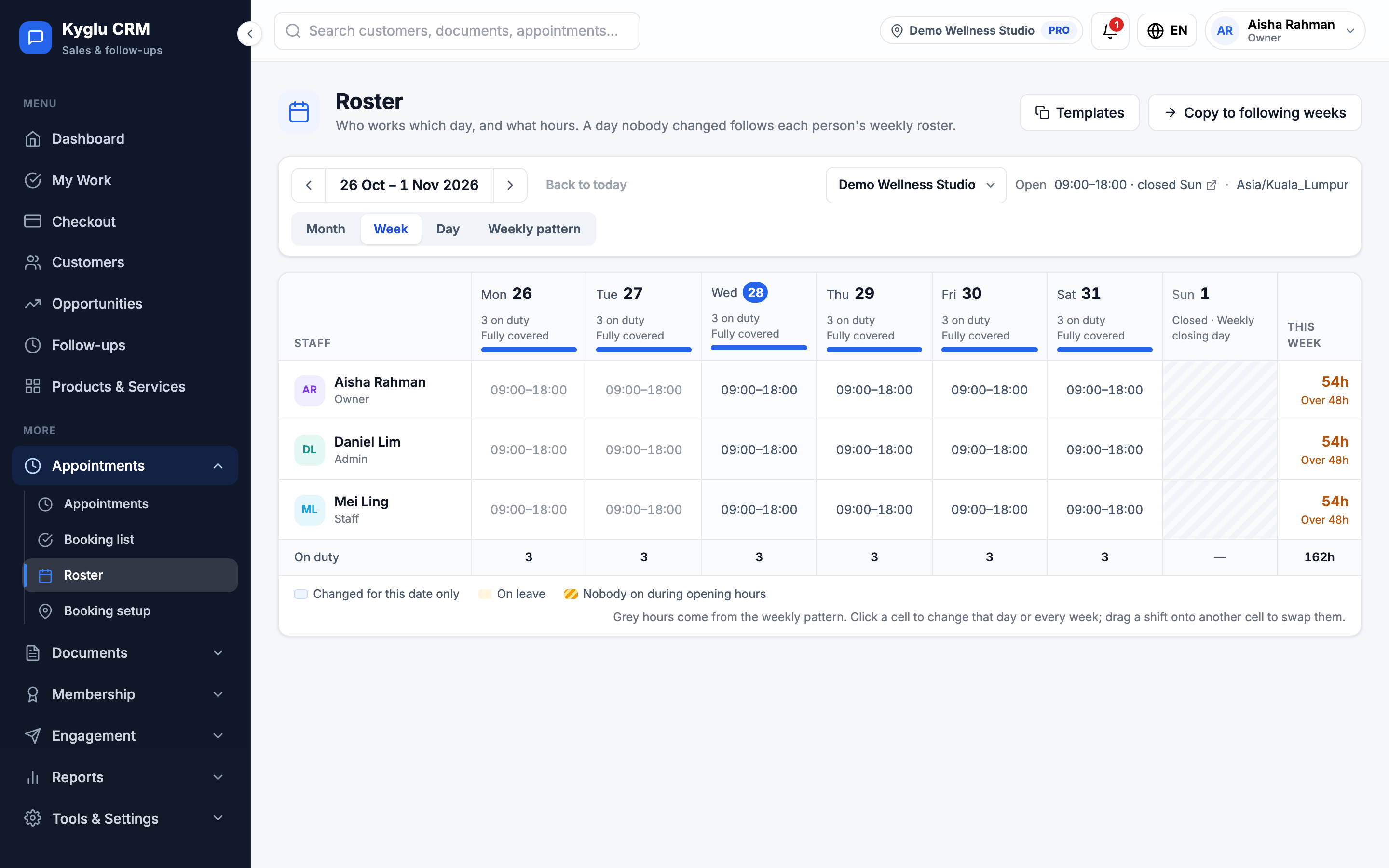
The Roster sets who works which day and what hours. Kyglu CRM uses it to work out which slots customers can book and which staff can be assigned.
Who can see it: Everyone. Changing it needs the Owner, an Admin, or Staff with the All appointments permission.
Open it from Appointments → Roster in the menu.
How the roster works
Each staff member has a weekly pattern: their usual working days, hours and breaks. Any day nobody has changed follows that pattern, shown in grey.
You can then change a single day, for example to swap a shift, add leave or bring someone in on their usual day off, without touching the weekly pattern.
Staff rosters never go beyond the branch's business hours. Set those in Booking Setup.
Roster style
Choose how rest days work:
| Style | How it works |
|---|---|
| Everyone off together | Every staff member rests on the days the branch is closed and works every other open day. The simplest choice. |
| Rest days in turn | Each staff member has their own rest days |
Change a day
- Click a staff member's cell on a day.
- Choose:
- Working: set their hours for that day
- Rest day: they're off
- Leave: they're on leave, with a reason, for example annual leave
- Choose the scope:
- This day only: other weeks stay as they are
- Every [weekday]: changes the weekly pattern from now on
- Save.
To undo a one-day change, choose Use weekly schedule.
You can also drag a shift onto another cell to swap them, or drag a person onto a day to add them on their usual hours.
If appointments are booked in the hours you're removing, you need to reassign or cancel them first. Past days can't be changed.
Coverage
The roster highlights gaps when nobody is on during opening hours, for example "nobody before 11:00", and shows Fully covered when someone is on all day.
Copy and reuse weeks
- Copy to following weeks: copies the week on screen forward for 1 or more weeks. Days with appointments that would clash stay as they were and are listed.
- Templates: save a week you're happy with as a template, for example "Week B", then Apply it to other weeks.
Closures and holidays
You don't need to add leave for each person on public holidays. Add a closure in Booking Setup instead. The branch takes no bookings that day and everyone's roster is suspended.
Staff from other branches
If you have more than one branch, click Add staff from another branch to roster someone at this branch for a support shift.