Booking Setup
Booking setup controls how customers book you: your branches and hours, closures, booking rules, services and how your store appears in the Customer App.
Who can see it: Owner and Admin.
Open it from Appointments → Booking setup in the menu. The page has these tabs: Branches, Closures, Booking rules, Services, Store listing and Notifications.
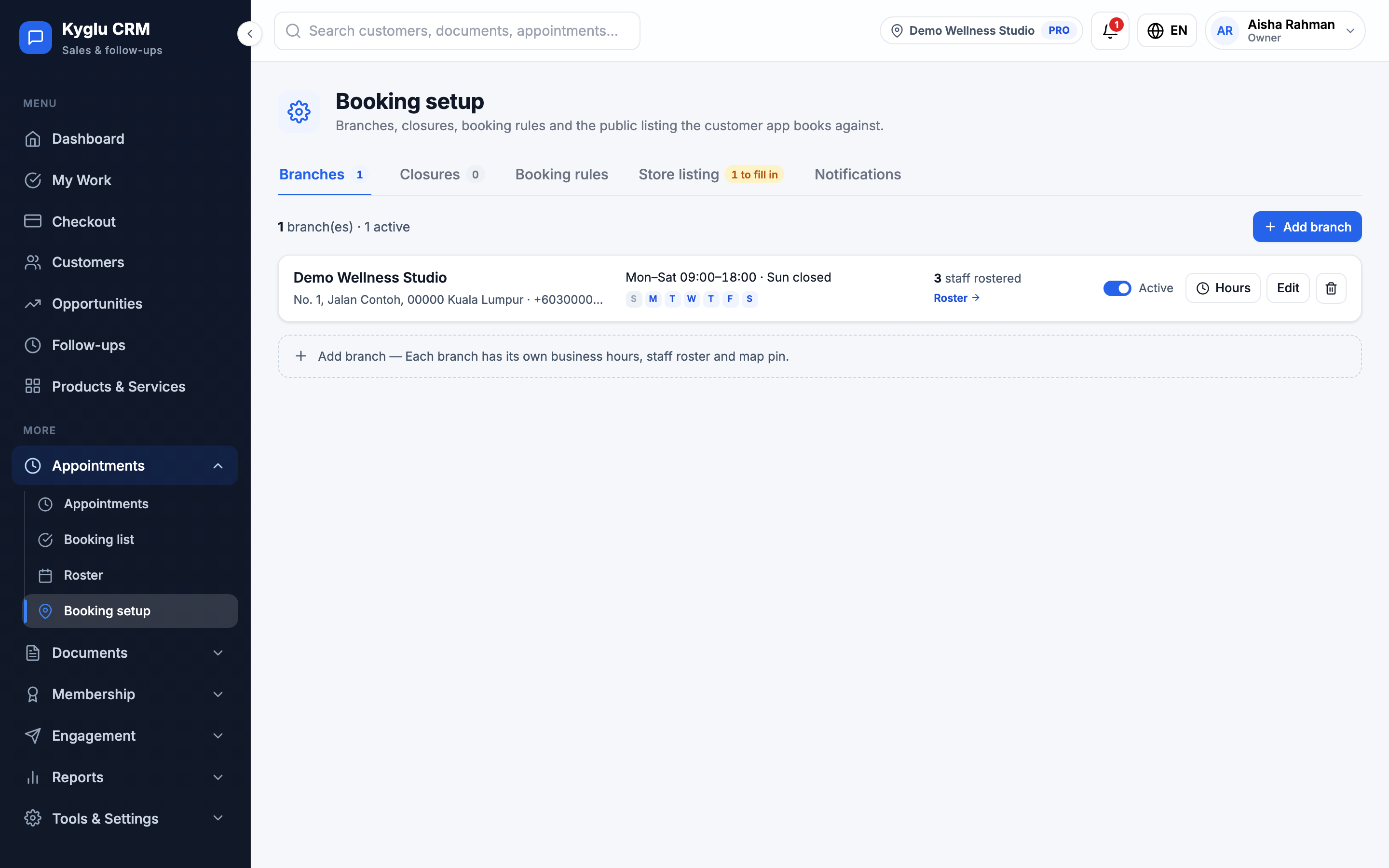
Branches
Each branch has an address, phone, timezone and business hours. If your shop isn't set up yet, click Set up my shop.
To set opening hours:
- Click Set hours on the branch.
- Tick the days the branch opens and set the hours. Use Apply to every open day to give every day the same hours.
- Click Save business hours.
Staff rosters and the slots customers can pick never go beyond business hours. See Branches for more on running several locations.
Closures
Add closures for public holidays, annual shutdowns, renovations and other set dates.
- Open the Closures tab and click Add closure.
- Enter a Reason, for example "National Day". It's shown on the calendar and, if you choose, in the Customer App.
- Choose the Start date and End date. For a single day, use the same date for both.
- Choose which branches it Applies to.
- Choose what happens That day:
- Closed all day: no bookings, and staff rosters are suspended
- Shortened hours: bookings only within the hours you set
- Walk-in only: open as usual, but customers can't book that day in the app. Your team can still add appointments.
- Click Save closure.
Existing appointments are not cancelled automatically. After saving, Kyglu CRM lists the affected appointments so you can contact each customer to reschedule or cancel.
Booking rules
These rules apply to bookings made in the Customer App. Appointments your team adds aren't limited by them.
| Setting | Description |
|---|---|
| Furthest ahead | How far ahead customers can book, from 1 week to 12 months |
| Shortest notice | How soon before the start a slot can still be booked, or No minimum |
Confirmation and staff assignment
These are set per service:
| Setting | Options |
|---|---|
| Confirmation | Instant: the booking is confirmed automatically. Manual: it waits as pending until you accept it in the Booking list. |
| Staff assignment | Customer picks staff: the app shows free staff and the customer may choose. Assigned automatically: the system assigns whoever is free with the fewest bookings that day. Assigned by a manager: the booking arrives unassigned and an Owner or Admin assigns someone. |
Booking deposits
You can ask customers to pay a deposit to hold an app booking. Customers pay you directly, for example by bank transfer or DuitNow, and you record it. Kyglu CRM never takes the payment itself.
On each service, choose the Booking deposit: No deposit, a Fixed amount, or a Percentage of the price.
On the Booking rules tab, set the rules for all deposits:
| Setting | Description |
|---|---|
| Free cancellation | Until the visit starts, or up to a number of hours before. A customer who cancels later, or doesn't show up, loses the deposit. Your team can still decide otherwise each time. |
| Time to pay | An app booking still unpaid after this time is cancelled automatically, and the slot opens again |
| How to pay | Your bank details or DuitNow ID, shown to the customer in the app while the deposit is unpaid |
Peak-period deposits ask for a deposit on set dates, such as Chinese New Year, even for services that normally have none. If a service already asks for more, the higher amount applies.
When a customer says they've paid, the appointment shows Says paid. Check the payment, then click Confirm received or Not received. The deposit comes off the bill at checkout.
Services
The Services tab lists your services with their duration, confirmation mode and staff. You can also manage services under Products & Services.
Store listing
This controls how your store appears in the Customer App's store directory. A preview shows what customers see.
| Setting | Description |
|---|---|
| List this store publicly | Show your store in the app's directory |
| Allow customers to join from the app | When off, customers can only join by your invitation or the counter QR code |
| Approve join requests first | Customers who join themselves wait as pending until you approve them on the Customers page. Invitation and QR code joins are never held. |
| Public name, phone, address, logo, country | What customers see |
During your free trial the listing is a preview only. It goes live when you subscribe.
Notifications
Send a test push notification to one of your app customers to check that it arrives on their phone.