Booking List
The Booking list puts every booking in one queue, so you can confirm, assign staff, reschedule or complete them quickly. It's the best place to handle new bookings from the Customer App.
Who can see it: Everyone. What you can do with each booking follows the same rules as the calendar.
Open it from Appointments → Booking list in the menu.
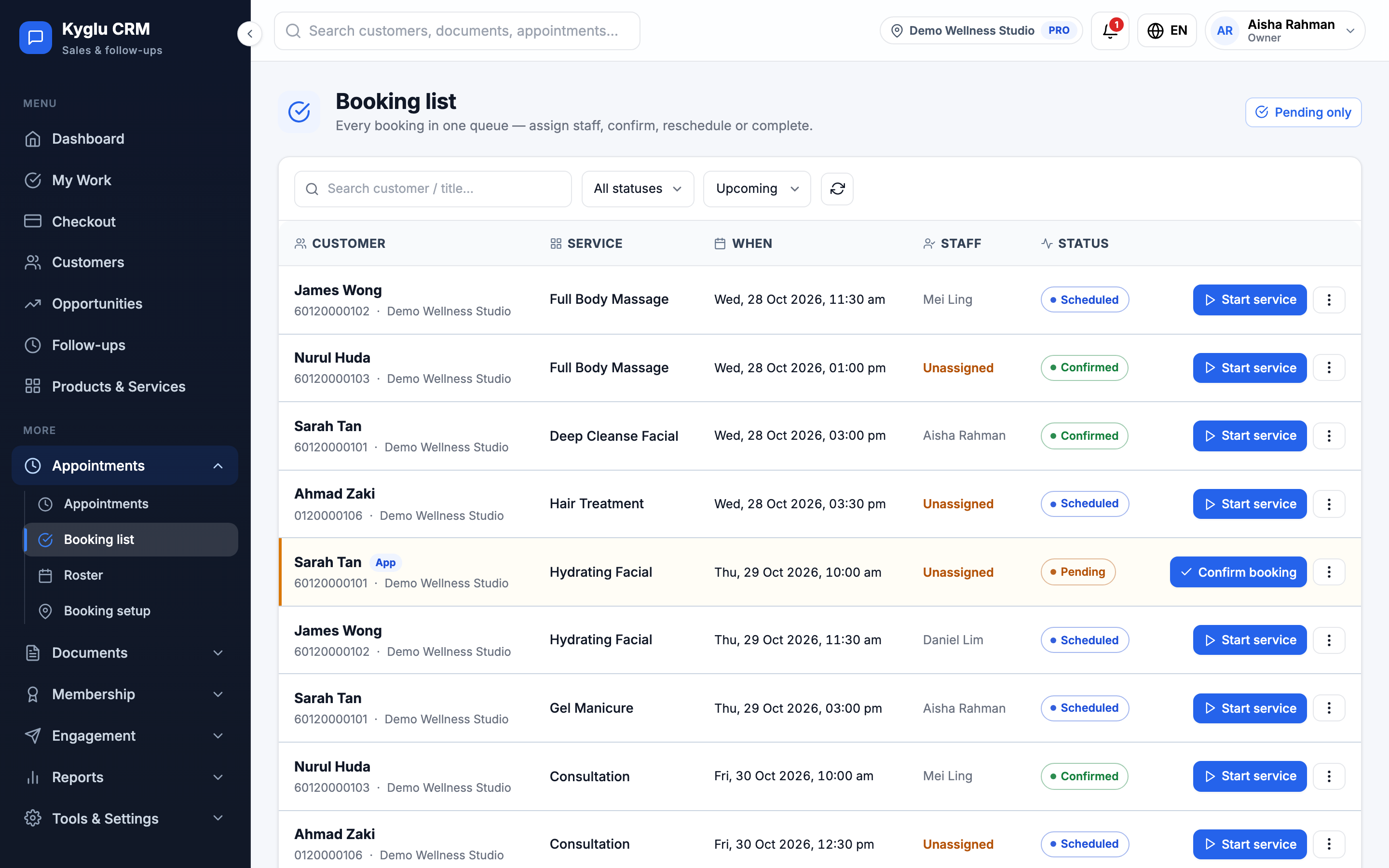
Find bookings
- Switch between Upcoming, Today, Past and All.
- Tick Pending only to see just the bookings waiting for confirmation.
- Search by customer or title.
- Click Refresh bookings to load the latest.
Confirm a new booking
Bookings from the Customer App can arrive Awaiting confirmation, depending on your booking rules.
- Find the booking and click Confirm & assign.
- Under Service staff, choose who will serve the customer. Only staff who can perform the service and are free at that time are shown.
- Confirm.
If no staff are available, reschedule the booking or change the roster first.
Other actions
| Action | What it does |
|---|---|
| Assign staff / Reassign staff | Choose or change the staff member. Availability is checked when you save. |
| Reschedule | Pick a new start time. The visit keeps its length and the customer is notified. |
| Reject | Reject or cancel the booking. The customer is notified. You can add an internal reason. |
| Start service | The customer has arrived and the service begins |
| Complete | The service is finished |
| No-show | The customer didn't come |
tip
A booking needs a staff member before it can start. If you start one without staff, you're asked to assign someone, or you can choose Start anyway.