Appointment Calendar
The Appointments page is your calendar. It shows who is booked when, so you can add, move and manage appointments.
Who can see it: Everyone. Staff create and manage their own appointments, meaning those assigned to them or created by them. The Owner, Admins and Staff with the All appointments permission manage the whole company calendar.
Open it from Appointments → Appointments in the menu.
Views
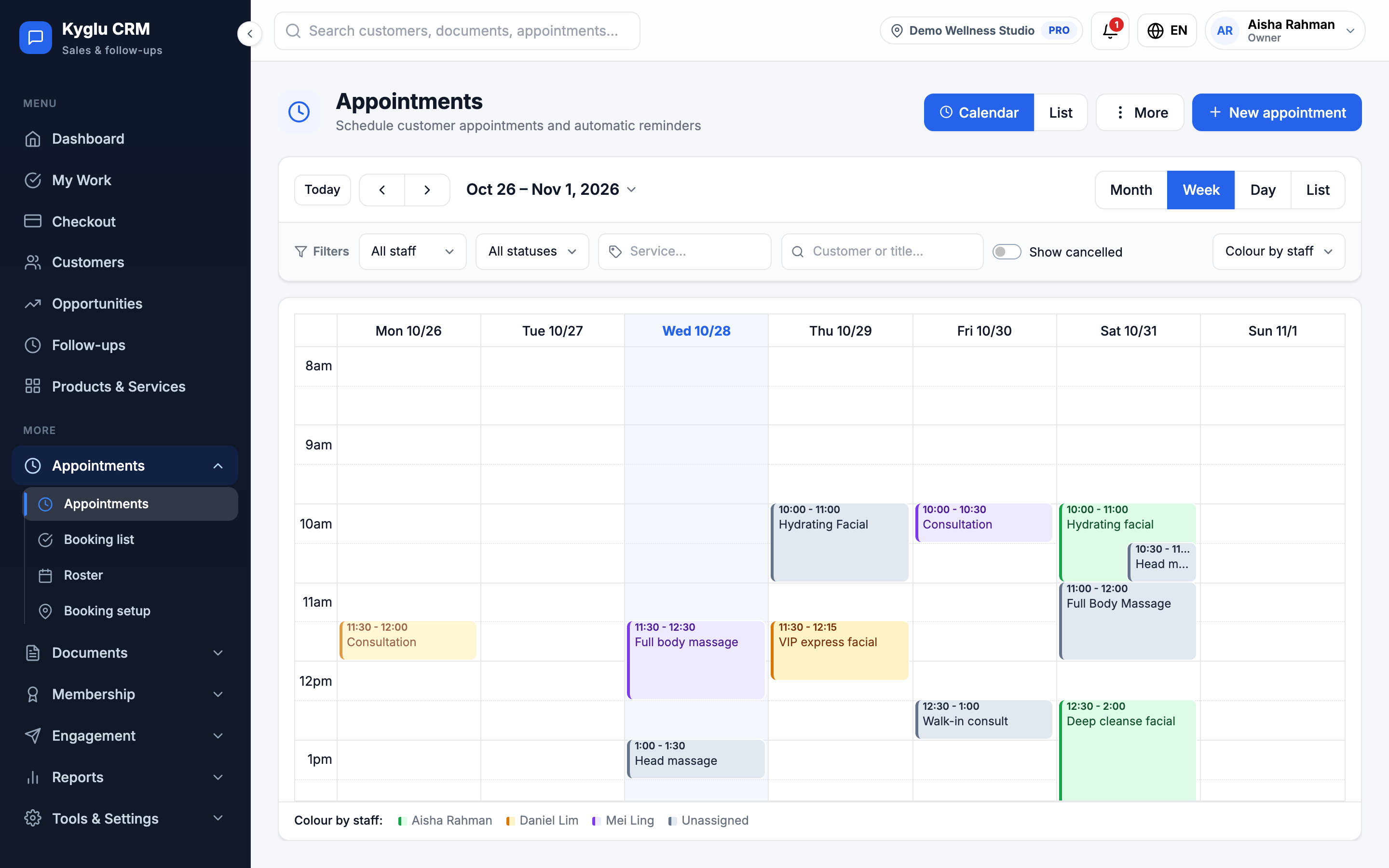
| View | What it shows |
|---|---|
| Day | A column per staff member, with their shift, time off and bookings |
| Week / Month | Appointments across the week or month |
| List | Appointments as a list, split into Today, Upcoming, Past and Cancelled |
Use the filters to show All staff or one person, a status or a service, or search by customer or title. You can colour appointments by staff or by status, and tick Show cancelled to include cancelled ones.
The day board
The day view also shows the day's figures: appointments today, how many are awaiting confirmation, time clashes, no-shows and unassigned bookings. Click a figure to highlight the matching appointments.
Owners and Admins also see:
- Bookable time left: rostered hours minus time off and booked time
- Expected service value for the day
- Sellable gaps: the largest free slots today. Click Schedule to book into one.
- To assign: bookings without a staff member. Pick someone to assign them.
Grey areas are outside a staff member's shift or during their time off. Closed days and walk-in-only days are marked on the calendar.
Add an appointment
-
Click New appointment, or click an empty slot on the day board.
-
Fill in the details:
Field Description Customer Pick an existing customer, or create a New customer on the spot Service Pick from your catalogue, or type a title manually Branch Where the appointment takes place Assigned staff Who will serve the customer Date, Start time, End time When. Times are in your company timezone. Location / Description Optional details Internal notes Never shown to the customer Reminders Email the customer and/or notify the assigned staff in-app, for example 1 day or 1 hour before -
Save the appointment.
If the time overlaps another appointment for that staff member, you're warned. You can choose Book anyway to double-book on purpose.
Appointment statuses
| Status | Meaning |
|---|---|
| Awaiting confirmation | Booked by a customer in the app and waiting for you to confirm |
| Scheduled | Created but not yet confirmed |
| Confirmed | Confirmed with the customer |
| In progress | The service has started |
| Completed | The service is finished |
| Cancelled | Cancelled by the shop or the customer |
| No show | The customer didn't come |
Completed, cancelled and no-show appointments can no longer be edited. Appointments are never deleted. Cancelling keeps the history.
Work an appointment
Open an appointment to see its details, the customer's visit history, and a timeline of reminders and messages. Depending on its status you can:
- Confirm booking, and tick Notify the customer on WhatsApp after confirming to open WhatsApp with a confirmation message
- Start service when the customer arrives
- Complete it when done. You're offered the chance to redeem a package session and record products used.
- Create invoice to bill the visit
- Mark it No-show
- Cancel booking, with an optional reason and who cancelled
- Reschedule by changing the date and time. Reminders move with it.
Once a service starts or an appointment is closed, any reminders still waiting are cancelled.
Bookings made for someone else
A customer can book in the app for someone else, such as a family member. These appointments show Booked for someone else. Before starting the visit, click Verify recipient to check the person at the counter and link them to a customer record.
Reminders
Reminder settings (Owner and Admin) set the defaults for new appointments:
- Whether customers get reminder emails
- Whether assigned staff get in-app reminders
- Which staff emails are sent about bookings
- Whether customers are emailed when you move or cancel their appointment
The automated WhatsApp reminder the day before an appointment is also switched on here. See WhatsApp.
Sync with Google or Apple Calendar
Click Sync calendar to see your appointments in your own calendar app. Owners and Admins sync the whole company's appointments. Staff sync only their own.
| Option | How it works |
|---|---|
| Subscription link | Click Generate subscription link, then Add to Google Calendar or Add to Apple Calendar. Google refreshes every few hours. In Apple Calendar you can set the refresh down to every 5 minutes. |
| Instant sync (Google account) | Click Connect Google account. Kyglu CRM creates a separate calendar in your Google account and updates it instantly. It can't access your other calendars. |
Owners and Admins can tick Only sync my own appointments to limit the sync to appointments assigned to or created by them.
The sync is one-way. Changes made in Google Calendar are undone automatically. Always change or cancel appointments in Kyglu CRM.
The subscription link contains a private key, so anyone with it can see your appointments. Don't share it. If it leaks, click Reset link.